Most people have no idea this is possible. They think AI means ChatGPT, and ChatGPT means a company holding all your data. It doesn’t have to.
This guide walks you through the whole thing, step by step. No technical expertise required. By the end you’ll have your own AI running locally on your own computer, you’ll understand how it works, and you’ll know exactly where to take it next.
Here’s what we’ll cover:
- What local AI actually is (in plain English)
- Why you’d want it (and the tradeoffs)
- The three things you need to run it
- Whether your computer is up to the job
- Where to find models and how to pick your first one
- How to download and run your first model
- How to customize it to sound and behave the way you want
- Why your context, not the model, is the part worth owning (and why ownership is a spectrum)
- How to give it a real interface you own
- Where to go from here
(In a hurry? Jump straight to the 5 steps and come back for the rest.)
Let’s jump in.
What Is Local AI?
Local AI means running an AI model on your own computer instead of using one hosted by a big company. (You’ll also hear it called a local LLM, short for “large language model.”)
When you use ChatGPT, you’re a guest in someone else’s house. You type a message, it gets sent to OpenAI’s servers, their computers do the thinking, and the answer comes back. You can’t run ChatGPT on your own machine; your only option is to be a user of their service, on their terms.
But ChatGPT isn’t the only kind of AI. Over the past few years, the open-source community has built thousands of AI models that are free to download and run yourself. Instead of renting access to someone else’s AI, you run your own, on your laptop, your desktop, the computer you already have.
And yes, someone with no technical background can do this. That’s what the rest of this guide is for.
Why Run Your Own AI Locally?
Here are the top 5 reasons:
-
Privacy. What happens on your computer stays on your computer. Your conversations aren’t sent off to be processed, stored, or analyzed. You decide what’s shared and what isn’t.
-
Freedom. When you run your own AI, you decide what it can and can’t do. No one else sets the limits.
-
Control. With a hosted service you’re stuck with the interface and models they give you, and they change things whenever they want. Run your own and you choose the models, the settings, and when (or whether) anything changes.
-
Convenience. You can run many different models and tools from one place, instead of juggling a different app and login for every task.
-
Cost. Once it’s set up, the main cost is the electricity to run it. For most everyday use, that’s a lot less than a monthly subscription.
The downside of Local AI
The primary downside of local AI is that the capability of the models you can run locally varies based on the power of the computer you are running them on.
The performance you are going to get out of the average laptop is going to be nowhere close to what a ChatGPT-level model will offer you.
However, local AI models are improving quickly, and not all tasks require Einstein-level intelligence.
A small model running on your laptop is genuinely good at the everyday work: drafting and rewriting, summarizing a long document, brainstorming, cleaning up notes, answering questions about something you paste in. Save the cloud for the hardest reasoning, the longest documents, and the times you want the best answer that exists.
And the good news is it’s not an either/or proposition. When you own your AI system instead of being a user of a Big Tech AI system like ChatGPT, you can switch between local and cloud-based models depending on the task.
We’ll talk more about this later in the guide. For now, hold onto one idea: this isn’t a choice between local and cloud. It’s about never being locked into one company’s box, and getting to pick the right tool for each moment from a system you control.
What You Need to Run Local AI
You need three things:
- A computer that’s powerful enough.
- An AI model you download onto it.
- A way to talk to that model once it’s there.
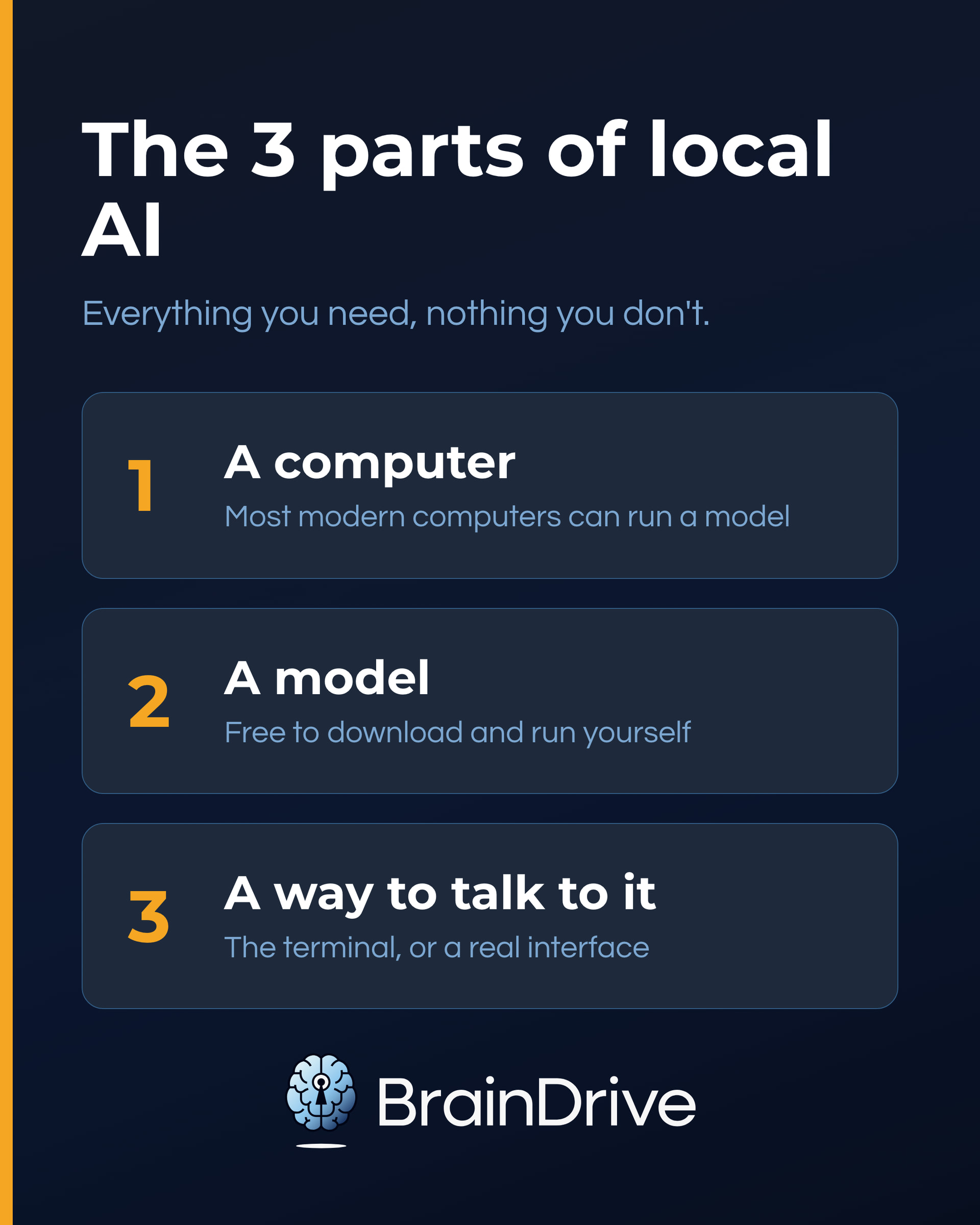
That’s the foundation. Once you have it, there’s a lot more you can build on top, but let’s get the foundation right first.
Is Your Computer Powerful Enough?
A “thumb in the air” estimate of whether your computer can run a local model that’s genuinely useful day to day:
| Platform | Minimum to start |
|---|---|
| Mac | Apple Silicon (M1 or newer) + 8 GB memory + SSD |
| PC | A recent CPU (Core i5 or better) + 8 GB RAM + SSD for CPU-only, or a GPU with 6 GB+ VRAM for a real speed boost |
Comfortably above this? You can run bigger, smarter models. Below it? You can still experiment with the smallest models, and you can always use a cloud model for the heavy lifting (remember: you don’t have to choose).
How to check your specs (and what they mean)
Before you look anything up, one concept makes the numbers meaningful: models come in sizes, measured in parameters. The size is right in the name — Gemma 4 12B is a 12-billion-parameter model. More parameters means a more capable model, but also a bigger model for your computer to hold.
“Hold” is the key word. Whether your computer can run a given model comes down to three things:
- Your task sets the size you need. More complex work generally needs a larger model.
- Your memory sets the size you can run. The model has to fit.
- Your memory speed sets whether responses feel quick or slow.
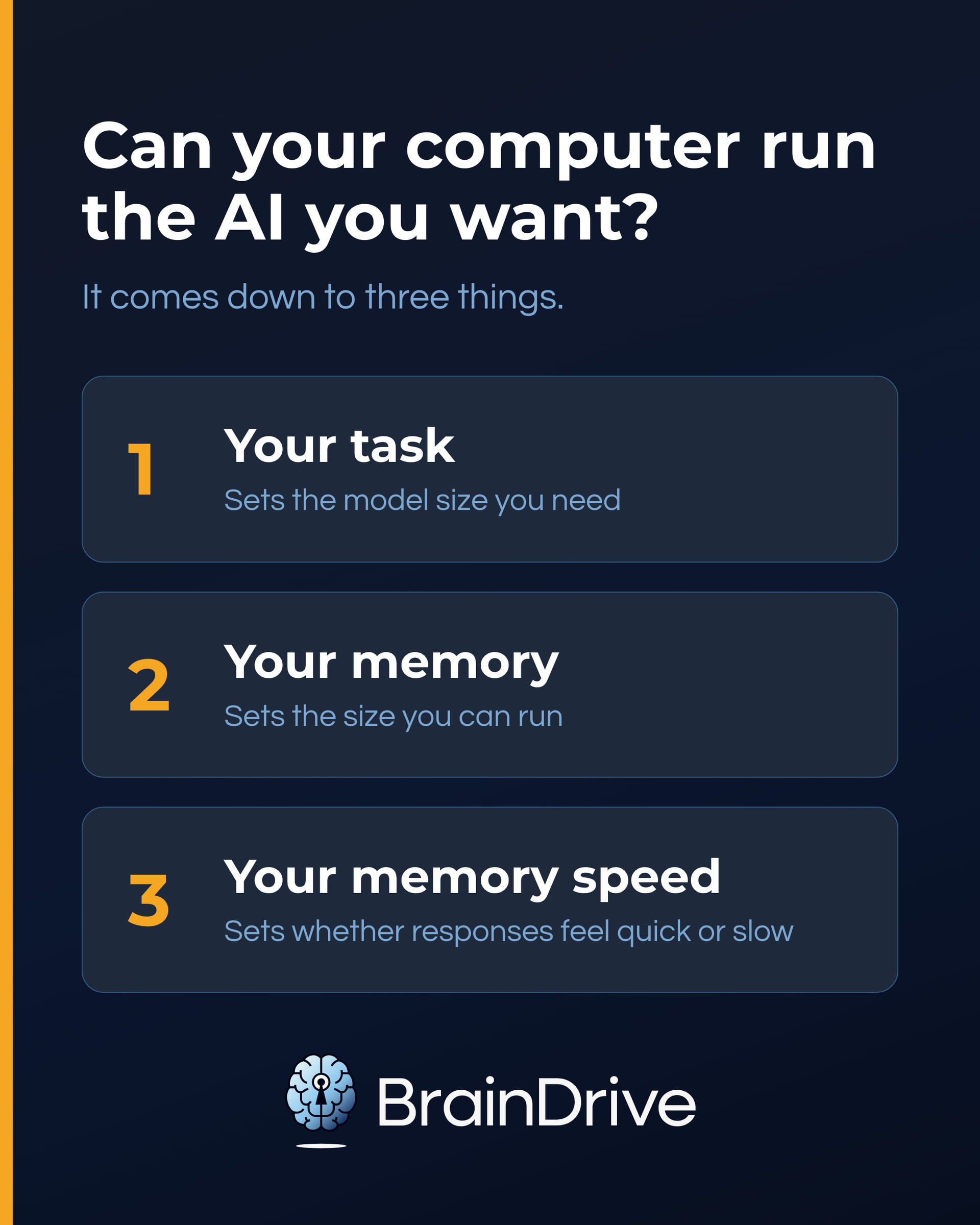
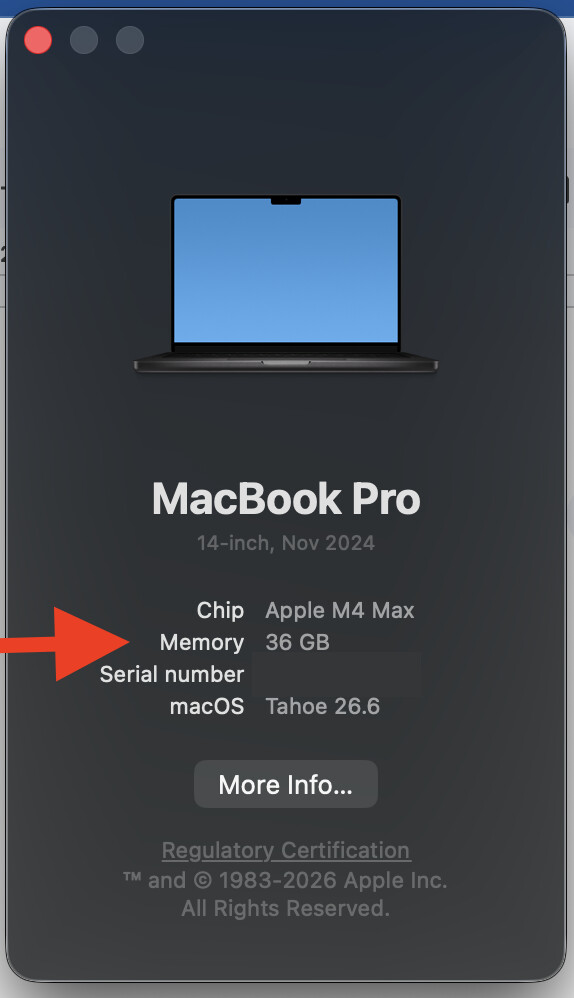
The first is about what you want to do, and the third is hard to look up, so the one number worth finding is your memory:
Mac: Click the Apple menu (top-left) → About This Mac and note the Memory number. Apple Silicon Macs (M1 and later) share one pool of “unified memory” between CPU and GPU, so that single number is the whole story.
Windows: Open Task Manager (Ctrl + Shift + Esc) → Performance tab. If you have a dedicated graphics card (the name says NVIDIA GeForce, AMD Radeon RX, or Intel Arc), click its GPU entry and note the Dedicated GPU Memory number. No dedicated card? Use your total RAM from the Memory tab instead. One trap to skip: ignore Shared GPU Memory — that’s regular RAM on loan to the graphics chip, not real graphics memory.
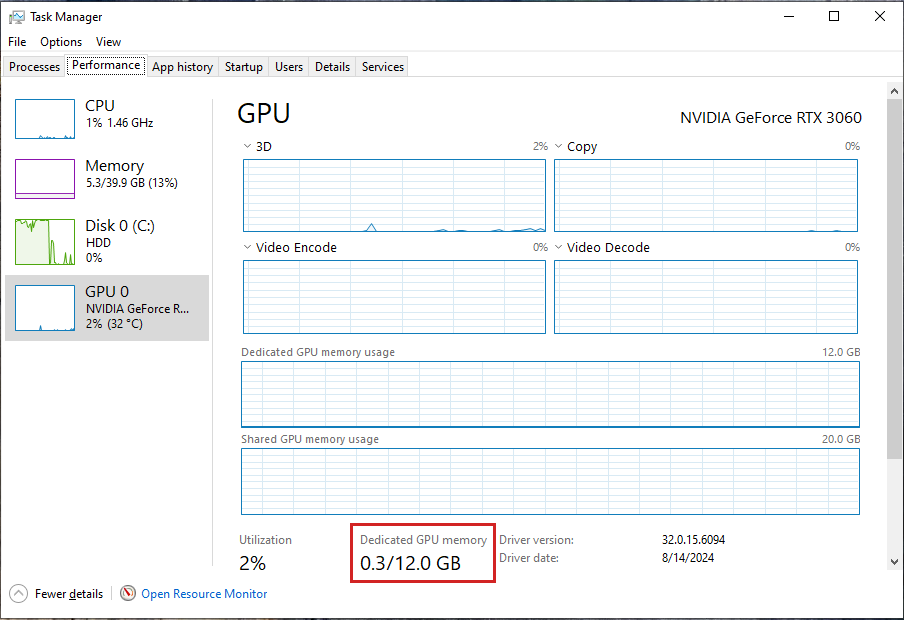
Now connect your number to model sizes with a rule of thumb: a model needs about three-quarters of its size number in gigabytes of memory, plus one. A 4B model wants about 4 GB; a 12B about 10 GB. On a Mac (or a PC where graphics share system memory), trim your memory number by about a third first — the rest of the computer is using it too.
Rather skip the math? Our free Local AI Readiness Checker runs the same rule with the edge cases handled: enter your numbers and it tells you the model size your computer can comfortably run, plus a starter model to try (nothing you type leaves your browser).
That’s the short version — and it’s all you need to keep going. The full method (speed, integrated graphics, and what to do if your computer comes up short) is in Can Your Computer Run Local AI? (And How to Check), and what’s actually inside these models (parameters, tokens, and quantization — the trick that compresses big models to run on everyday computers) gets a plain-English explainer in How to Choose a Local AI Model for Your Computer.
Where to Find Local AI Models
Two main places:
1. Ollama: curated, simple, beginner-friendly
Ollama offers a clean, curated list of the most popular open models (Llama, Gemma, Qwen, and more). Each has a standard page showing its sizes, file size, and the exact command to run it. For most people new to local AI, this is the place to start, and it’s the tool we’ll use below.
2. Hugging Face: massive, powerful, a bit messy
Hugging Face is the largest model repository in the world, with over a million entries. The trade-off: not all are meant to run locally, and there’s far more to sort through. It’s where you’ll find models trained for very specific tasks, but expect to spend more time filtering.
Choosing Your First Model
Head to the Ollama models page .
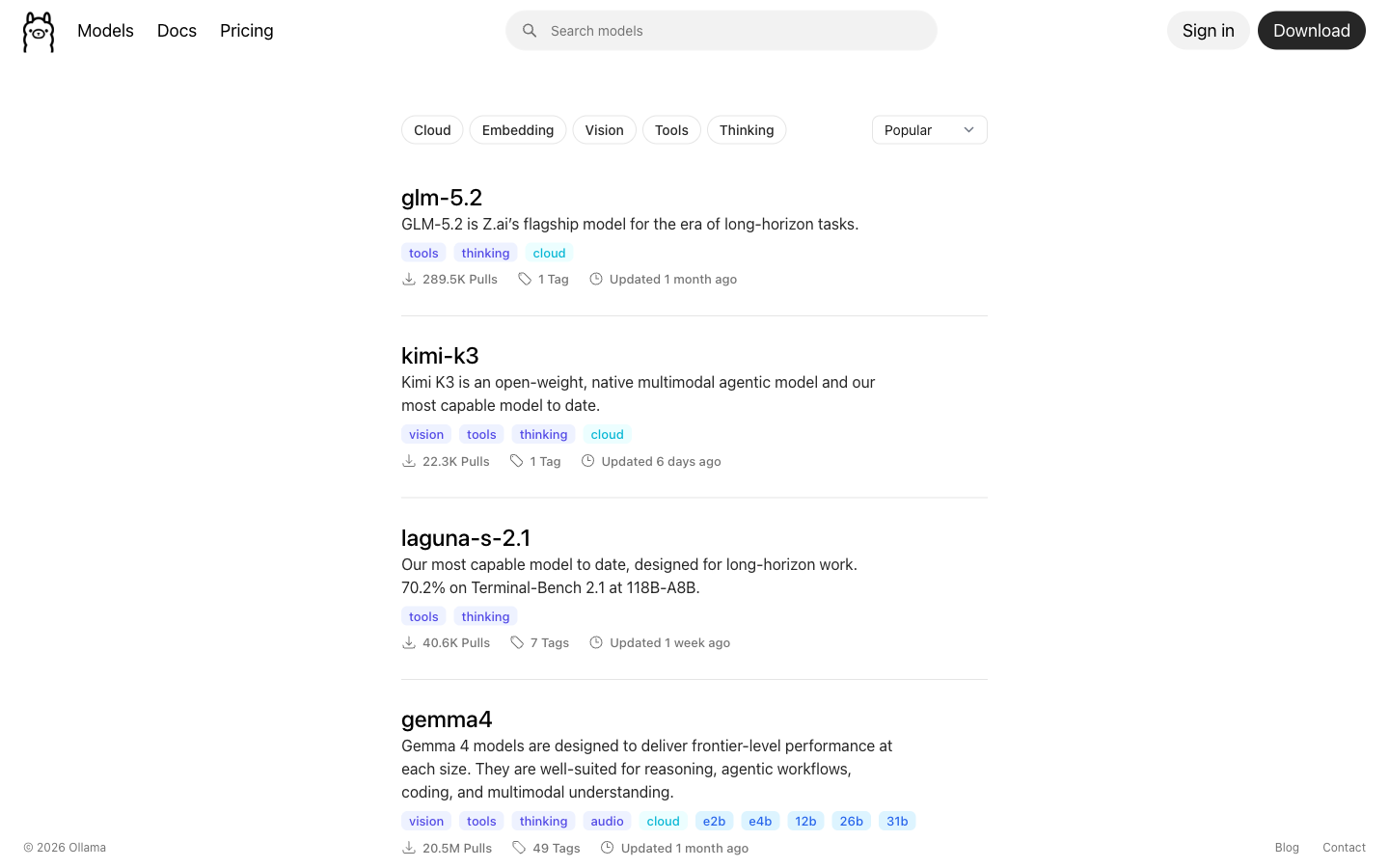
You can search or filter at the top and sort by Popular to surface the most-used models. Each model carries capability tags so you can tell at a glance what it’s for:
- Thinking: reasons step by step; great for brainstorming and decisions.
- Tools: can use external tools like web search.
- Vision: can handle images.
- Embedding: for adding info to databases; skip for now.
Each model also shows its available sizes (from tiny, under 1B, up to very large).
Rule of thumb:
- Smaller models (1B–7B) run on most computers.
- Larger models (13B+) need a strong GPU or lots of RAM.
Not sure what to pick? Start with Gemma 4, Google’s open model. It comes in “E” sizes built to run well on everyday computers, and as of this writing there’s a version for whatever machine you have:
- Most computers (16 GB of memory or more): go with Gemma 4 E4B. On a 16 GB machine, grab the compact version (about a 6 GB download):
ollama run gemma4:e4b-it-qat. Got 24 GB or more? Take the full version, about 10 GB, fast, and surprisingly capable. - At the 8 GB minimum: grab the compact version instead (about 4 GB):
ollama run gemma4:e2b-it-qat - Older or slower machine? The featherweight Gemma 3 1B runs almost anywhere and still gives you the full experience.
Don’t like your pick? Delete it and try another with one command.
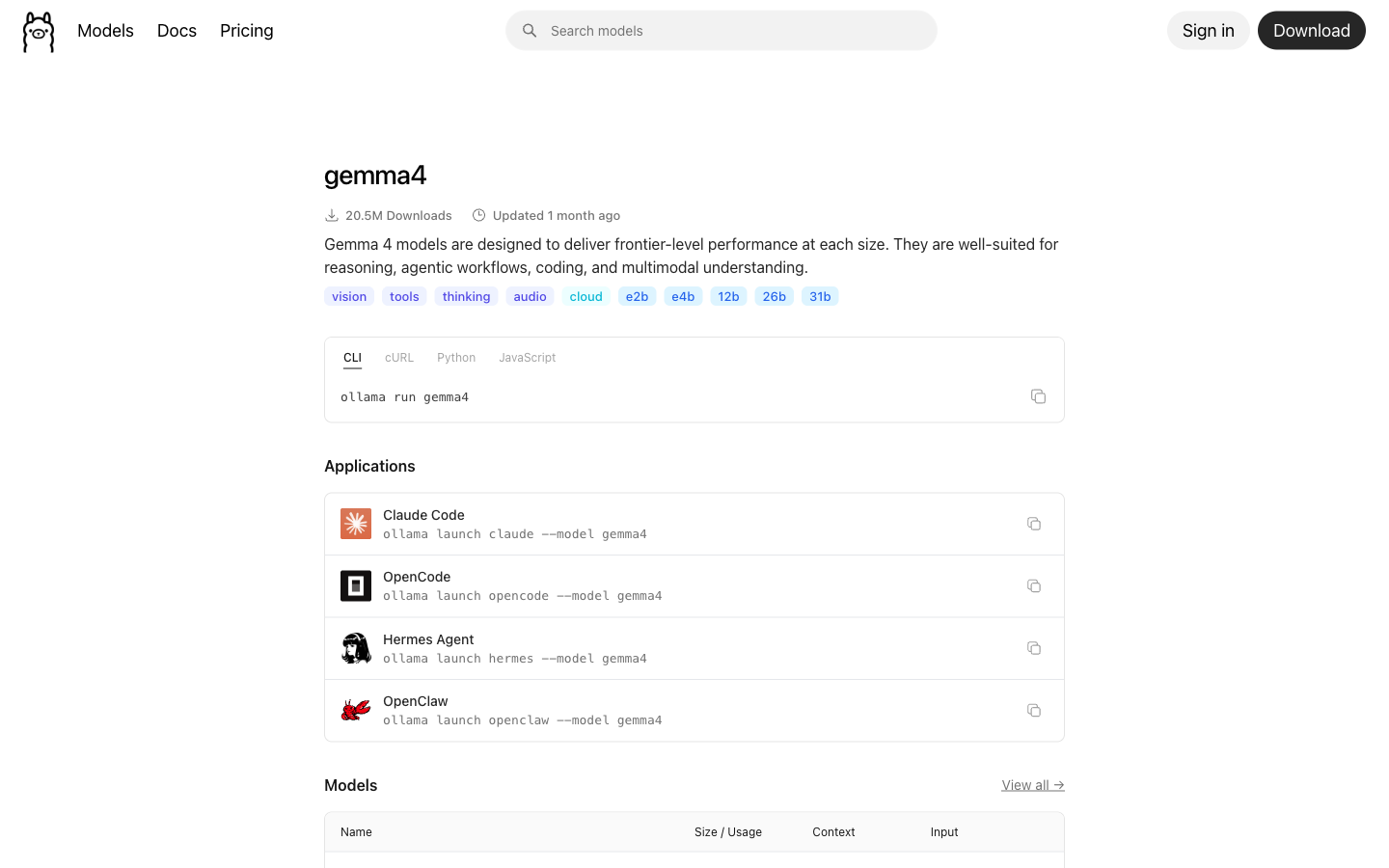
Click a model and its model page shows everything: what it is, its available sizes as tags (for Gemma 4, that’s the laptop-sized E2B and E4B up through 12B, 26B, and 31B), and the exact command to run it with a copy button.
A size’s number is its parameter count, which drives how much memory it needs: too big for your RAM/VRAM and it won’t run. (Gemma 4’s E-sizes are named for their effective parameters, so go by the listed download size rather than the number in the name.) One more concept worth knowing: a model’s context window is how much it can “hold in mind” at once (measured in tokens; one token is about three-quarters of a word); bigger means it follows longer conversations and documents.
For your first run, stick to the small sizes (around 4B parameters or fewer); those run on most computers. For our example, we’ll use Gemma 4 E4B.
Download and Run Your First Local AI Model
Here’s how to get up and running with your first local AI model in 5 simple steps:
Step 1: Download Ollama. Go to ollama.com and download the version for your system (it’s free). The page should detect the right one automatically.
Step 2: Install it. Run the installer like any other app. About a minute.
Step 3: Pick your model. On the Ollama models page, click the model you want, pick the size you want, and copy the run command (the copy button is right next to it). It looks like ollama run gemma4:e4b.
Step 4: Open your terminal. Don’t panic. The terminal is just a window where you type commands instead of clicking buttons, and this is the only “technical” step: it’s copy-and-paste.
- Mac: Open the Terminal app (Applications → Utilities).
- Windows: Open Command Prompt or PowerShell.
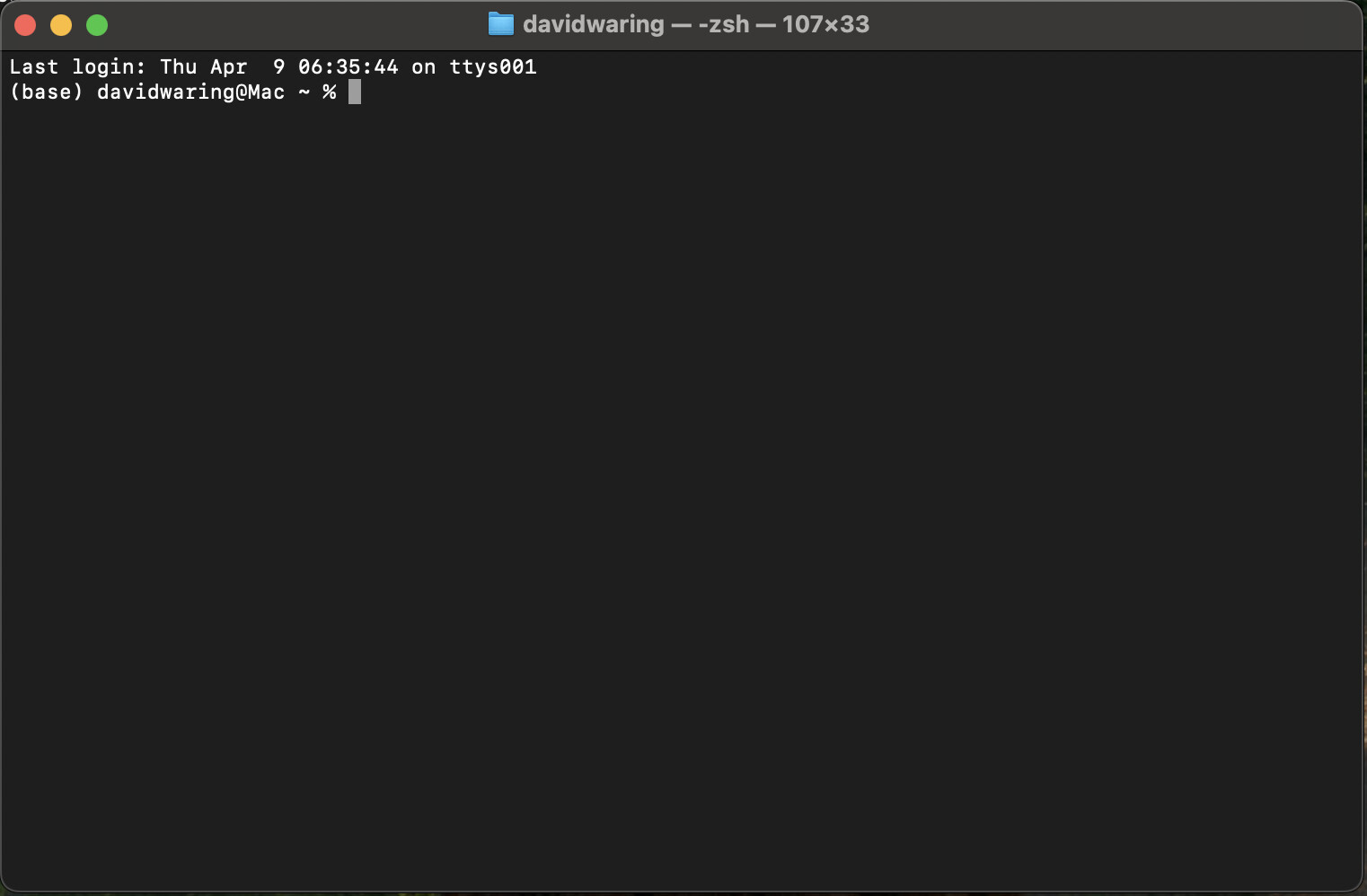
Step 5: Paste the command and press Enter. You’ll see the model download, then a prompt where you can type. Say “hello” and press Enter, and you’re now chatting with your own AI model, running entirely on your computer.

Now feel it: unplug the internet
Before we go further, do one thing.
Turn off your Wi-Fi, or unplug your network cable. Then keep chatting with your model.
It still works. No internet, no account, no company on the other end. Just you and an AI running on your own machine. That’s the moment local AI stops being an abstract idea and becomes something you can feel. You own this.
Exciting, right? This isn’t the end of your AI journey. It’s the very beginning. Let’s keep going.
If something goes sideways:
- Download taking a while? The model file is a few gigabytes. On a typical connection that’s a few minutes for a small model. The progress bar isn’t stuck.
- First response slow? The model loads into memory the first time you run it, so give it a moment. It’s faster after that.
- Answers appearing slowly? Without a GPU, expect the text to arrive at reading speed rather than instantly. That’s normal, and a smaller model is the quickest fix.
- It crashed or won’t load? The model is probably too big for your computer’s memory. Try the compact build:
ollama run gemma4:e2b-it-qat.- Done for now? Type
/byeto leave the chat and get back to your terminal. Start it again anytime with the sameollama runcommand.- Want to free up space? Remove a model with
ollama rm gemma4:e4b(swap in whichever model you want gone).
Make It Yours: Customizing Your Model
The model you just downloaded isn’t a sealed black box. You can shape how it behaves. Here are the three settings most people adjust, all from the same terminal.
1. Give it a personality (the system prompt)
The system prompt is the most powerful customization, and the easiest. Think of it as a job description for your AI: it sets the role, goals, rules, and tone before your conversation even starts.
Like onboarding a new employee, you might say: “You are a friendly customer-service agent. Always be polite, solve the customer’s problem, and never promise a refund; offer store credit first.”
To set one, start your model and type:
/set system "You are a friendly, encouraging writing coach who gives short, specific feedback."
From then on, the model follows that instruction. Want to keep it? Save your customized version:
/save my-writing-coach
Run it anytime with ollama run my-writing-coach. Confirm it saved with ollama list.
2. Adjust creativity (temperature)
Temperature controls how creative vs. focused the model is.
- Low (around 0.2): focused, predictable, fact-based. Good for summaries and direct answers.
- High (around 0.9): imaginative and varied. Good for brainstorming and creative writing.
Most models sit between 0 and 1 (Ollama’s default is 0.8). To change it for your session:
/set parameter temperature 0.9
Then save it to a new model name if you want to keep it.
3. Adjust memory length (context window)
Remember the context window from when you picked your model? It’s how much the model can keep in mind at once. By default Ollama picks a context window based on your hardware, starting at 4,096 tokens on modest machines and going higher when you have the memory for it, but most modern models can handle more than they’re given. If you work with long documents or conversations, raise it:
/set parameter num_ctx 8192
There are many more settings you can tweak; these three cover what most people ever need. Ollama’s Modelfile reference has the full list when you’re ready.
A quick word on licenses
Every model comes with a license describing what you can and can’t do with it. For personal use on your own computer, you’re almost always fine. If you ever plan to use a model in a business or product, check the license first; some restrict commercial use. See a model’s license with /show license, and you can even ask an AI to summarize what it allows (not legal advice; do your own homework for anything commercial).
So You’re Running Your Own AI Locally. Now What?
Take a second to appreciate what just happened. You downloaded a real AI model, ran it on your own machine, chatted with it offline, and gave it a personality. Most people have no idea this is possible, and you just did it.
And while running an AI model locally is magical, we’d argue the model is the least important part of your AI system to own. Not because what you just did doesn’t matter, but because there’s a piece that matters even more, and almost nobody talks about it.
What makes an AI system uniquely yours is not the AI model. It’s your context.
One word, two meanings, so let’s be clear: earlier you adjusted the context window, which is how much fits into a single conversation. Your context is the bigger thing that window draws from. Your chat history, your documents, your goals, the way you like to work.
The local AI model you just downloaded from Ollama is the same one everyone else downloads. But the results it generates are completely different for each of us, based on one thing: the context you feed it.
AI models are becoming commodities, like electricity. As you just saw, swapping one for another takes a single command. But your context can’t be swapped for anyone else’s, and it only grows more valuable the longer you use your system. That’s why your context, not your model, is the most important part of your AI system to own. And when a big company holds it, every switch means starting over as a stranger.
When you own your context, you can personalize any AI model to your unique situation. And as long as you also control the interface you use, you can swap freely: a cloud model when you want full power, a local model when you want full privacy. How far you take each piece is up to you, because ownership is a spectrum:
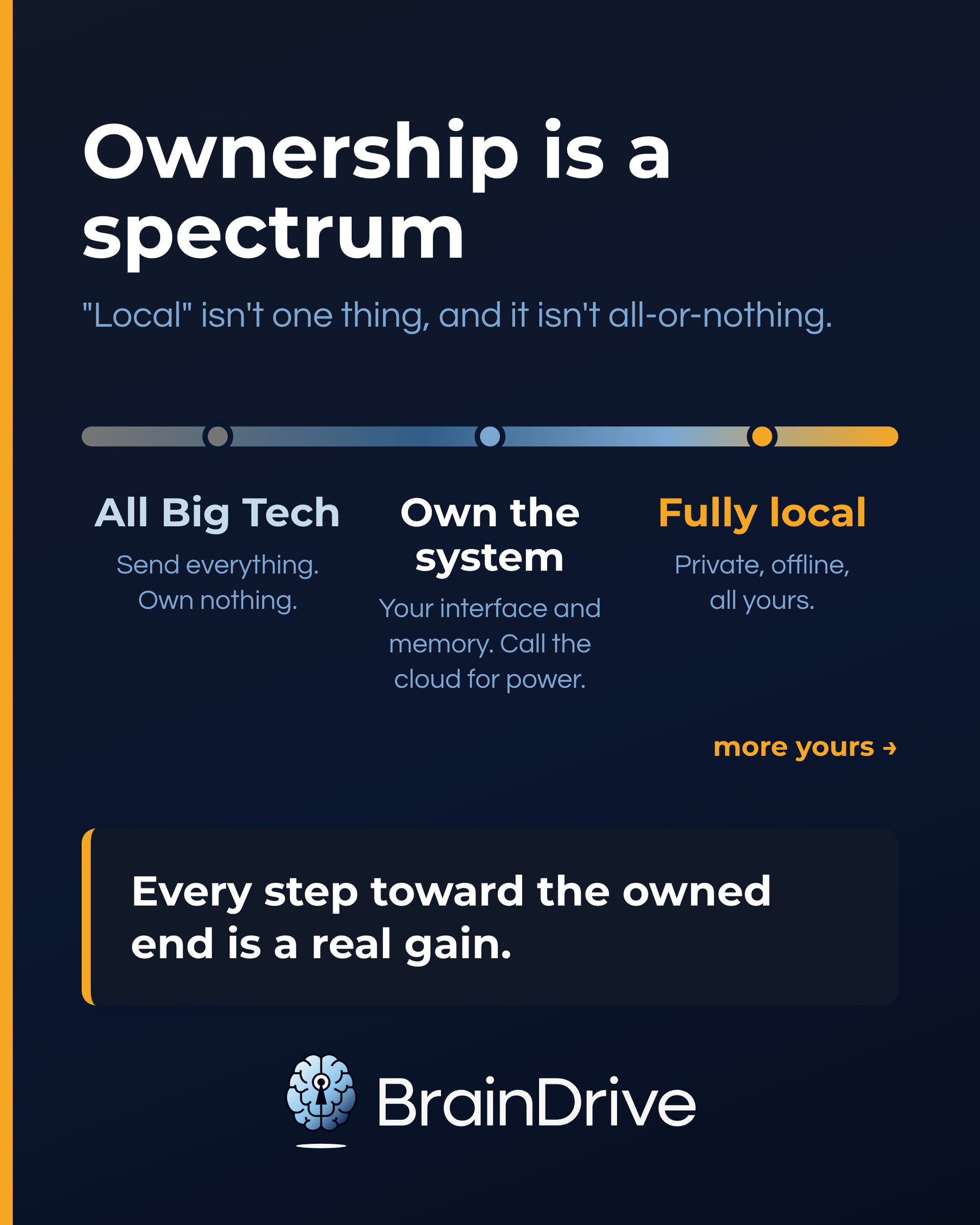
concept graphic: “Ownership is a spectrum.” A left-to-right gradient with three stops, from All Big Tech (own nothing) to Own the system (call the cloud for power) to Fully local (all yours); every step toward the owned end is a real gain
And this is where BrainDrive, the user-owned AI system we build, comes in.
Make It Usable: Add a Real Interface & Memory You Own
We build BrainDrive, so we’re biased. It’s our answer to the ownership problem this guide just described, and it gives you three things:
-
An interface you own. Point BrainDrive at the very models you’re already running in Ollama, and instead of the command line you get a ChatGPT-like interface. And unlike most polished interfaces, it’s MIT licensed, the most permissive kind of open source. (More on why that matters below.)
-
It accumulates your context, in a structured way. BrainDrive isn’t just a chat box where history piles up. It interviews you and turns what it learns into Your Memory: an organized, growing picture of your goals and situation that your AI can draw on in every conversation, stored on your own machine. That’s the context idea made real: the part of your AI system that compounds lives with you, not with a company.
-
The models stay swappable. Point BrainDrive at a private local model for everyday chat, or a powerful cloud model when you want maximum horsepower. Same interface, same context, your call every time. Whatever model is best next year, you’ll be able to plug it in without losing a thing.
The honest tradeoff: BrainDrive is a younger project than the big names below, so you’ll hit an occasional rough edge while we build.
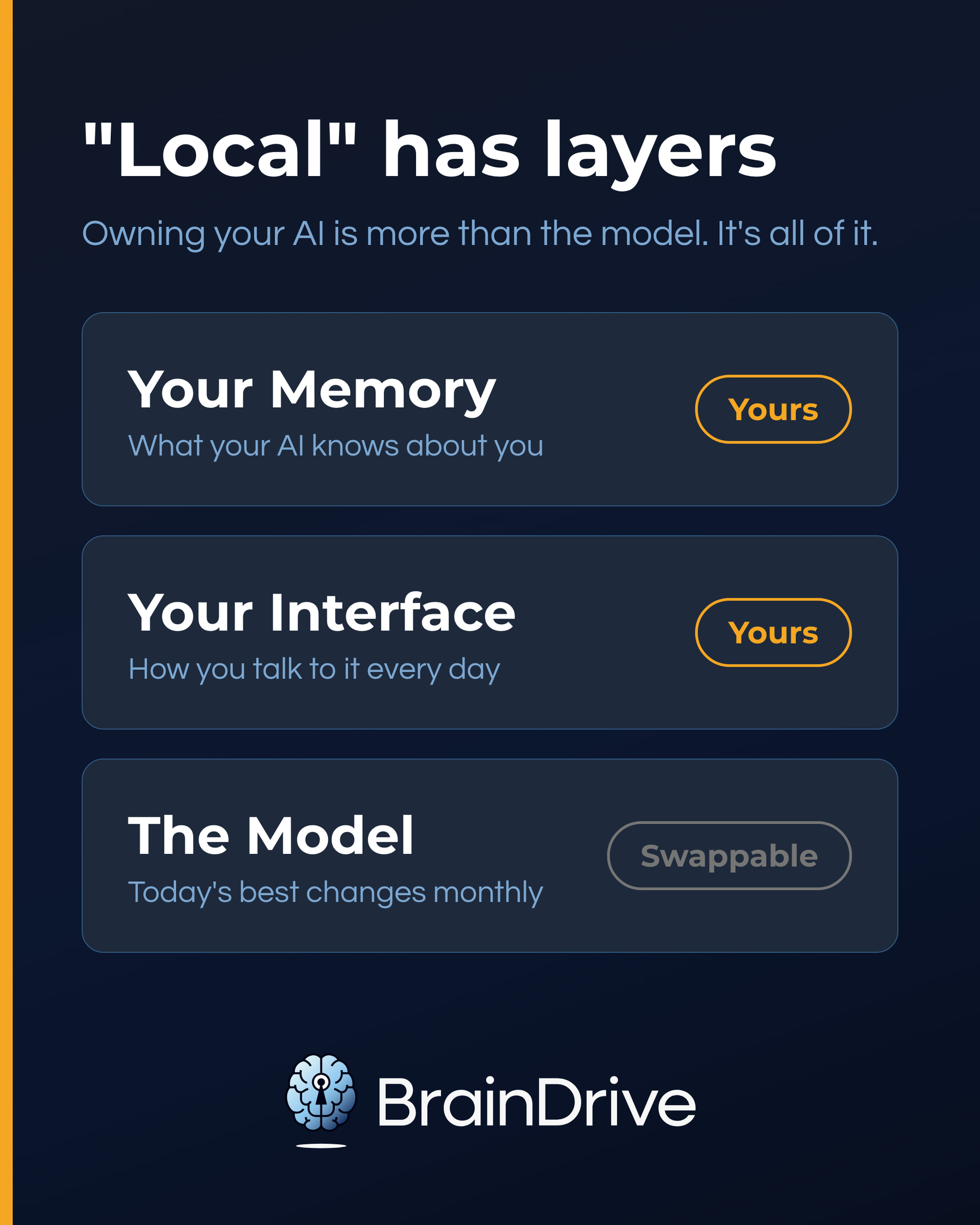
concept graphic: “local has layers.” Three stacked layers, Model / Interface / Memory, all labeled “yours”; the Model layer tagged “swappable.” The thesis graphic, and the most shareable one
And no terminal required. Go to braindrive.ai/install, download the installer for your computer, and open it like any other app. (You did one terminal step above to get Ollama going; BrainDrive doesn’t even need that.) Then create your account and point it at your local models.
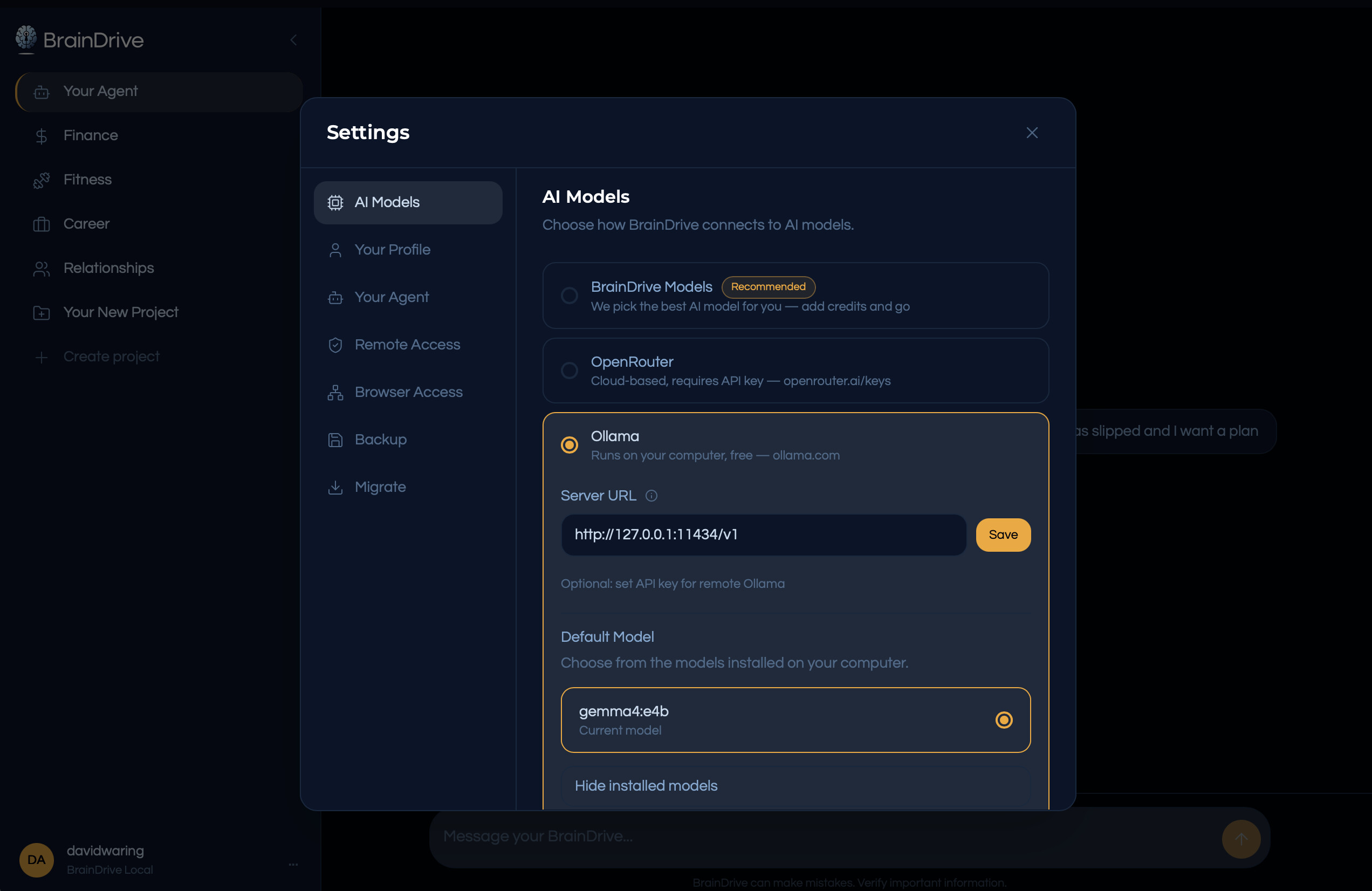
BrainDrive’s AI Models settings pointed at local Ollama: server URL on your own machine,
gemma4:e4b selected as the current model
Now You Can Evaluate Any AI System
Here’s the payoff of everything you’ve learned: you can now size up any AI system for yourself. Three questions tell you most of what you need to know:
- Who holds your context? Your machine, or their servers?
- Do you truly own the software? That’s the license, the same idea as the model licenses above, applied to the app itself.
- Can you swap models freely?
Owning your AI means you’re never stuck with anyone’s choice, including ours. If BrainDrive isn’t the right fit, here are the most popular alternatives, with what people like and don’t like about each.
| Tool | License | People like | People don’t like |
|---|---|---|---|
| LM Studio | Proprietary (closed source) | Polished, beginner-friendly GUI; easy model search/download; cross-platform | Can be resource-heavy; you can’t see or change the code |
| Open WebUI | Custom (branding restrictions) | Rich, clean interface; chat-with-documents; lots of features | No longer a fully permissive license; drew community concern |
| Jan | Apache-2.0 (permissive) | Modern, uncluttered, offline-first | Younger project; occasional rough edges |
| GPT4All | MIT | Runs well on CPU; low requirements | Slower without a GPU; development has largely gone quiet since early 2025 |
| AnythingLLM | MIT | Excellent for chatting with your documents; all-in-one | More setup; very document-focused |
| LocalAI | MIT | Drop-in OpenAI-compatible API for builders | Command-line oriented; bring your own interface |
| Llama.cpp | MIT | Extremely fast and lightweight; huge community | Command-line; steeper learning curve |
| Ollama (built-in app) | MIT | Simplest way to run models; now has a basic desktop app, not just the CLI | The built-in interface is pretty bare-bones |
Try a couple and see what fits. They’re free, and switching is easy. (We break them down head-to-head in LM Studio vs. Ollama vs. BrainDrive & more, coming soon.)
One column there matters more than it looks: License. A permissive license like MIT means the software is genuinely yours: to keep, change, and use however you want, with no strings. A proprietary license (you can’t see the code) or a restricted one (limits on how you use or brand it) means you’re using it on someone else’s terms. It’s the legal side of ownership, easy to overlook until it matters. It’s also why we flagged it for BrainDrive above: it’s MIT, and among the polished, full-featured interfaces, not all are. So the license joins the list of things that stay yours: your model, your interface, your memory, and the software itself.
Where to Go From Here
Take stock of what you just did. You learned what local AI is, checked whether your computer can run it, downloaded a model, ran it on your own machine, customized it, and saw how to give it a real interface you own. That’s the whole foundation. Most people never get this far.
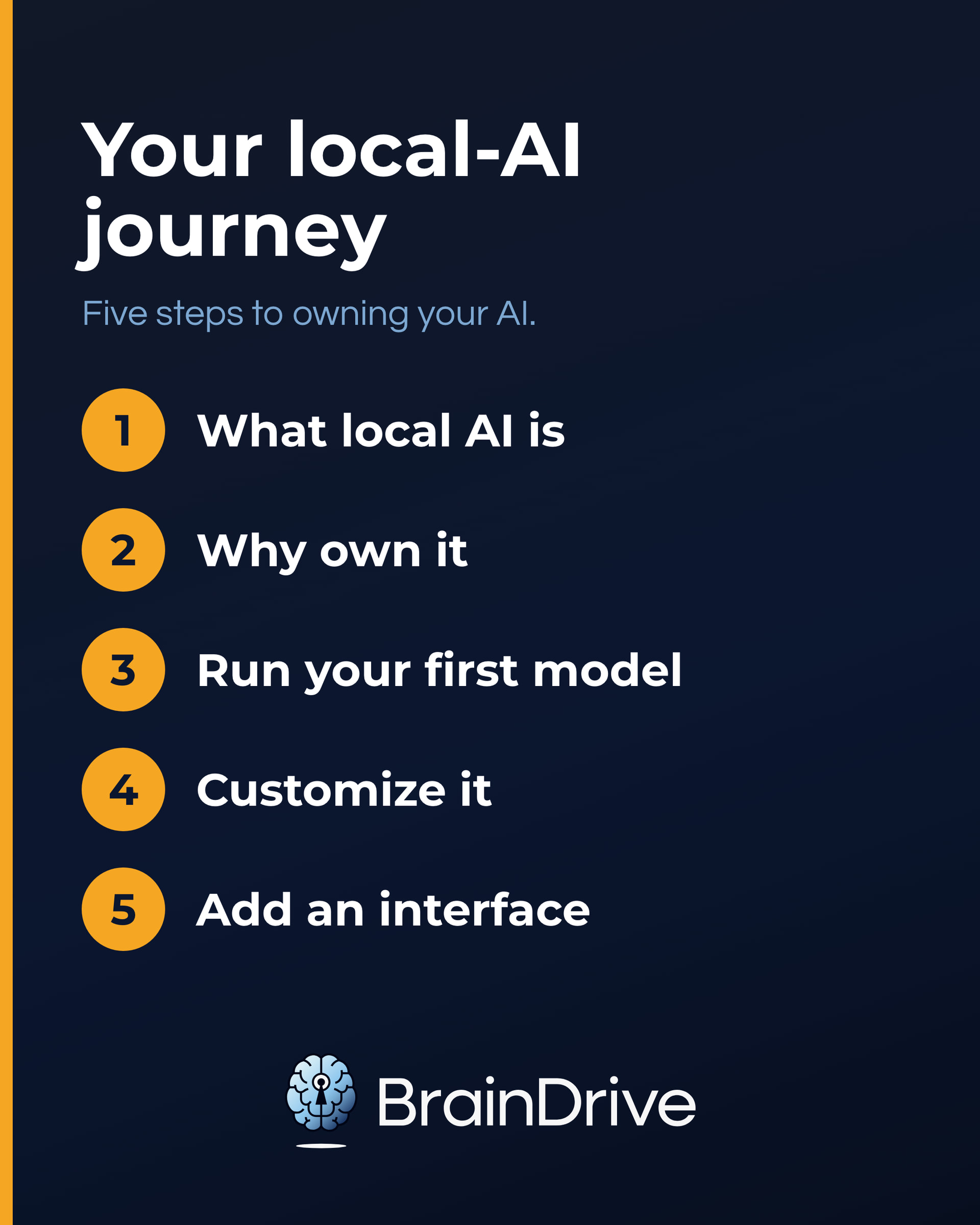
concept graphic: your local-AI journey recap, as a simple 5-step path: what is it → why → run your first model → customize → add an interface
And remember the big picture: owning your AI isn’t about doing everything locally or swearing off the cloud. It’s about freedom of choice and keeping the parts that matter yours: your interface, your memory, your data. The model is just the electricity; what you build around it is the part that compounds.
From here you can:
- Go deeper on hardware → Can Your Computer Run Local AI? (And How to Check)
- Pick the right model for you → Best Local AI models, in plain English (coming soon)
- Learn more about AI Privacy → How to run a private, offline AI (coming soon)
- Get help and share what you built → the BrainDrive community is where AI owners help each other: ask questions, show off your setup, and shape what gets built next.
Welcome to owning your AI. This is just the beginning.
Frequently Asked Questions
Is local AI better than ChatGPT?
For privacy, cost, and offline use? Yes. And for many everyday tasks, a good local model is more than enough. For the very hardest problems, the largest cloud models still lead. The good news: you don’t have to pick one. Use local when you want privacy or low cost, cloud when you want maximum power.
What is a local LLM?
“LLM” is short for large language model, the kind of AI behind tools like ChatGPT. A local LLM is simply one that runs on your own computer instead of a company’s servers. The model is a file you download; its size is measured in parameters (a 4B model has 4 billion of them), and how much it can hold in mind at once is its context window. For a full plain-English breakdown, see How to Choose a Local AI Model for Your Computer.
Can you really run AI offline?
Yes. Once a model is downloaded, it runs entirely on your computer, no internet required. (Try the unplug-your-Wi-Fi test above.)
Is local AI free?
The open-source models and tools in this guide are free to download and run. Your only real cost is the electricity to run your computer.
What computer do I need to run local AI?
Most modern computers can run a small model. A good starting point: an Apple Silicon Mac, or a recent PC with 8 GB of RAM and an SSD. More RAM or a GPU lets you run bigger, faster models.
Do I need to know how to code?
No. The only “technical” step is copy-pasting one command into your terminal, and this guide walks you through it.
Can my local AI search the web or hear my voice?
Not on its own. What you downloaded is a language model: it answers from what it learned plus the context you give it. Web search, voice, and image generation are separate pieces you add on top, and the interfaces covered above are where that starts.
More Resources
Tools and documentation
- Ollama — the tool this guide uses: the model library and the documentation, including the Modelfile reference with every setting you can tweak
- Hugging Face — the world’s largest model library, for when you outgrow the curated list
- BrainDrive — the user-owned AI system we build; installers at braindrive.ai/install
Communities
- The BrainDrive community — this guide’s home; bring your questions and your setups
- r/LocalLLaMA — the busiest local-AI community on the internet; model news usually lands here first
- r/LocalLLM — smaller and friendlier to beginners
More guides in this series (links go live as each one publishes)