
The Picks: Best Computer for Local AI at Each Price Range
(Prices are US street prices verified August 2026; we re-check the picks and bands quarterly, and in this market you should re-check them the week you buy. The pattern that outlives every price swing: buy memory first.)
| Budget | Best simple choice | Best speed-for-price PC | What it runs well |
|---|---|---|---|
| Starter (under ~$1,000) | Mac Mini M4, 16 GB (~$800) | Prebuilt tower with an 8 GB RTX 5060-class card | The everyday class (4B–8B): drafting, summarizing, coding help |
| Sweet spot ($1,000–$2,000) | Mac Mini M4 Pro, 24 GB (~$1,600) | Tower with an RTX 5060 Ti 16 GB (~$1,100–$1,500 complete) | The step-up class (12B+): longer documents, better reasoning, agents; image generation becomes pleasant on the PC |
| High-end ($2,000+) | Mac Studio or Mac Mini M4 Pro at 48–64 GB (~$2,000–$3,000; verify delivery) | Tower with a 24 GB prior-generation card | The heavyweights (27B–30B+); on the PC, image generation too |
| Compact / always-on | Framework Desktop with Ryzen AI Max+ 395, 128 GB (a Strix Halo example; verify current configuration and price) | Intel Panther Lake mini (sparse-model specialist) | Sparse (MoE) models up to 70B-class on the Strix Halo (a dense 70B fits, but runs below reading speed); quiet background work and model-room value, with more setup |
Choose the row that matches your budget and main use; the sections below help you confirm the fit. If you already own a computer made in the last several years, check it free with our readiness checker before you spend anything; this guide shows you how.
Choose your path
I want the quickest, most flexible experience for the money. Buy a standard desktop tower with an RTX 5060 Ti 16 GB. Avoid the nearly identical 8 GB version. Expect strong everyday local AI, good image-generation performance, and an upgrade path.
I want the simplest, quietest setup. Buy a Mac Mini with enough unified memory for your target model class: 16 GB for smaller everyday models, 24 GB or more for a meaningful step up. Avoid buying only for what barely fits today; Mac memory cannot be upgraded later.
I want a compact machine with room for much larger models. Consider a 128 GB Strix Halo compact desktop, such as the Framework Desktop. Expect good model-room value and more setup than a Mac or NVIDIA PC.
I need portability. Choose a 24 GB+ Mac laptop and check sustained, plugged-in performance reviews. Avoid expecting laptop-class hardware to match a cooled desktop for long local-AI jobs.
If one of those answers fits, you can shop now. The rest of this guide explains the tradeoffs, checks a configuration before purchase, and covers specialized cases.
The Picks in Detail
The simple rule behind every recommendation is: buy the cheapest band that meets your need with headroom for the next 12 months. Usage grows; a machine at its limit on day one is a machine you resent by month three.
Starter (under ~$1,000): Mac Mini M4, 16 GB
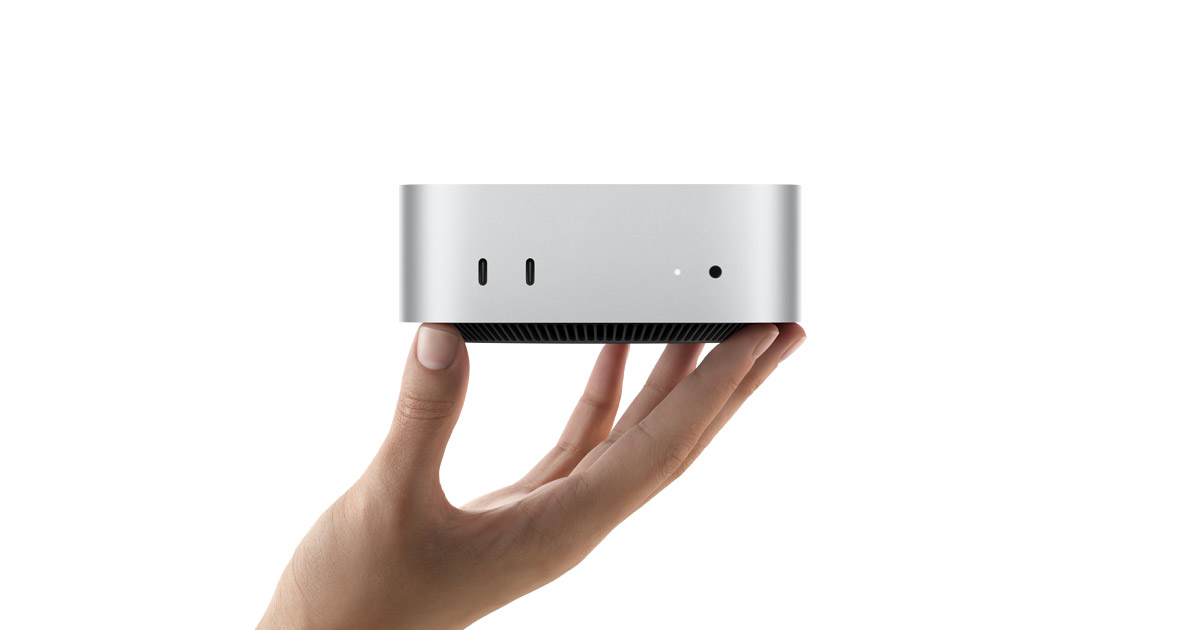
Mac Mini M4: best simple local-AI computer for smaller models.
The base Mac Mini M4 at 16 GB (now ~$800; Apple discontinued the old $599 entry configuration in May 2026) is still the cheapest good local AI machine you can buy new: small, silent, and enough memory to run the everyday class comfortably (the compact Gemma 4 E4B is the natural starter on it). Local AI works here with smaller models and some patience; that is the realistic expectation for this band. Standard 16 GB configurations have been available at retail even while Apple’s own store showed waits; check Best Buy, Amazon, and Micro Center before Apple’s build-to-order page.
PC route: a prebuilt tower with an 8 GB card (RTX 5060 class) lands near the top of the same band and runs the same class. Pick the PC here only if you’re set on the platform or plan to upgrade the card later; at this budget the Mac is simpler and quieter.
Sweet spot ($1,000–$2,000): Mac Mini M4 Pro 24 GB, or a 16 GB-card tower
This is where most people should land, and in 2026 it’s genuinely a two-horse race:
The Mac pick: Mac Mini M4 Pro, 24 GB (~$1,600 after Apple’s June price increase). Runs the everyday class with lots of headroom and opens the step-up class (the 12B tier, where nuance and long documents get noticeably better). The 48 GB configuration is still the spec sweet spot on paper (it unlocks the 27B class), but it is now a ~$2,000 build-to-order machine; check the delivery estimate and retailer stock before treating it as an impulse stretch.
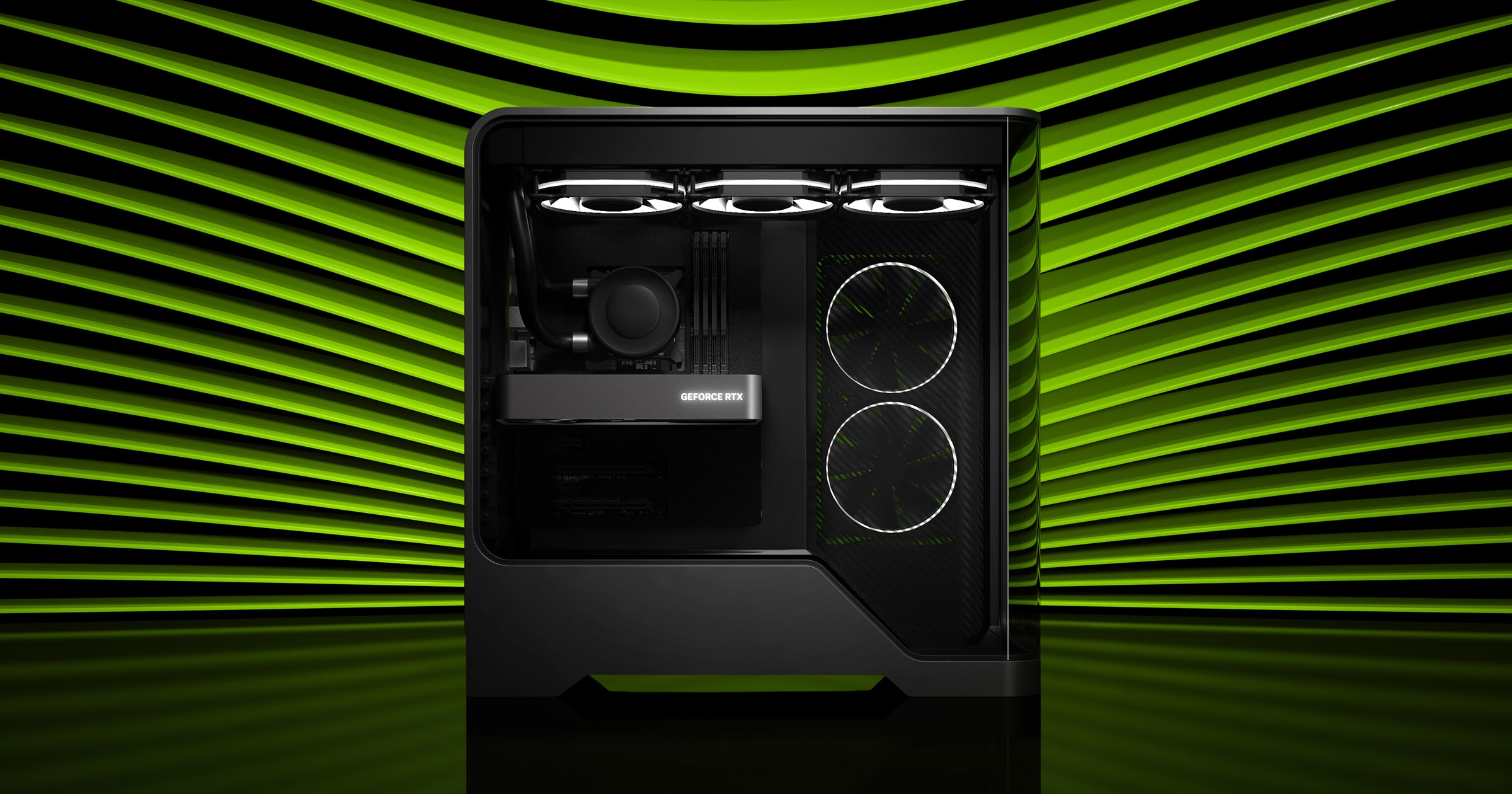
RTX 5060 Ti 16 GB tower: best speed-for-the-price PC for local AI.
The PC pick: a tower with an RTX 5060 Ti 16 GB. NVIDIA’s official price for the 16 GB version is $429 (the $379 starting price buys the 8 GB version, the one to avoid), and street prices run higher in this memory market; complete prebuilts commonly land around $1,100 to $1,500. It runs the 12B tier comfortably, is the entry point where image generation becomes pleasant, and the card can be swapped for a bigger one later. This is the guide’s best speed-for-the-price PC, not a consolation prize to the Mac.
What to buy inside the speed-for-price PC
You do not need a particular brand of prebuilt. Use this as the shopping checklist, and reject a machine that misses any of the first four items:
- GPU: RTX 5060 Ti with 16 GB of VRAM. Do not accidentally buy the 8 GB version; the model name is similar, but the local-AI ceiling is not. NVIDIA lists both memory configurations, so confirm the 16 GB in the full product specification.
- System RAM: 32 GB minimum. Choose 64 GB if you will index lots of documents, run agents, or keep other heavy apps open.
- Storage: 1 TB NVMe SSD minimum. Choose 2 TB if you expect to keep several models and a document library locally.
- Form factor: a standard desktop tower, not a laptop or an ultra-small PC. It gives the card room to breathe and leaves you an upgrade path.
- CPU: a current midrange desktop processor or better. A Ryzen 5 / Core i5-class chip is enough for most local-AI use; spend the next dollar on VRAM, RAM, or storage before chasing a premium CPU.
- Power and case: a quality power supply with headroom, and a case that fits a future full-length graphics card. Check the exact card maker’s power and connector requirements before buying.
- A real return window. Use it to run your target model, longest documents, and image workflow during the first week.
At a retailer, search for “RTX 5060 Ti 16 GB desktop”, then use this list to compare the actual configurations. You are buying the 16 GB VRAM tier, not a logo, RGB lights, or a gaming-benchmark score.
Portable version: a MacBook Air or MacBook Pro at 24 GB+ (~$1,400+) is the same memory story in a laptop, and Mac laptops handle sustained AI load more gracefully than most Windows laptops. Read reviews that test sustained performance plugged in, not ten-minute benchmarks.
High-end ($2,000+): the most unified memory you can actually get
Buy this band only if your try-first test demanded it, and in 2026, plan the purchase: this is the band the memory shortage hits hardest.
The Mac pick: Mac Studio (M4 Max) or Mac Mini M4 Pro at 48–64 GB (~$2,000–$3,000 depending on configuration; Apple raised the Studio’s starting price by $500 this year). This runs the heavyweight class (30B+), the most capable open models available. The catch is delivery: high-memory build-to-order configurations can be delayed, and the estimate changes quickly. Retailers sometimes have stock configurations; take a real stock configuration this month over waiting for a perfect build-to-order machine.
PC route: a tower with a 24 GB card, and in this market that usually means a prior-generation card (RTX 4090 class, including the used market). Premium RTX 5090 models have recently been listed above $4,000, far above their launch pricing, and are very hard to justify for local AI alone. The 24 GB PC is the right high-end pick when image generation or visual work is a main goal; for pure model room per dollar, the high-memory Mac wins even with the wait.
Best compact / always-on option: Framework Desktop, and the wider Strix Halo class
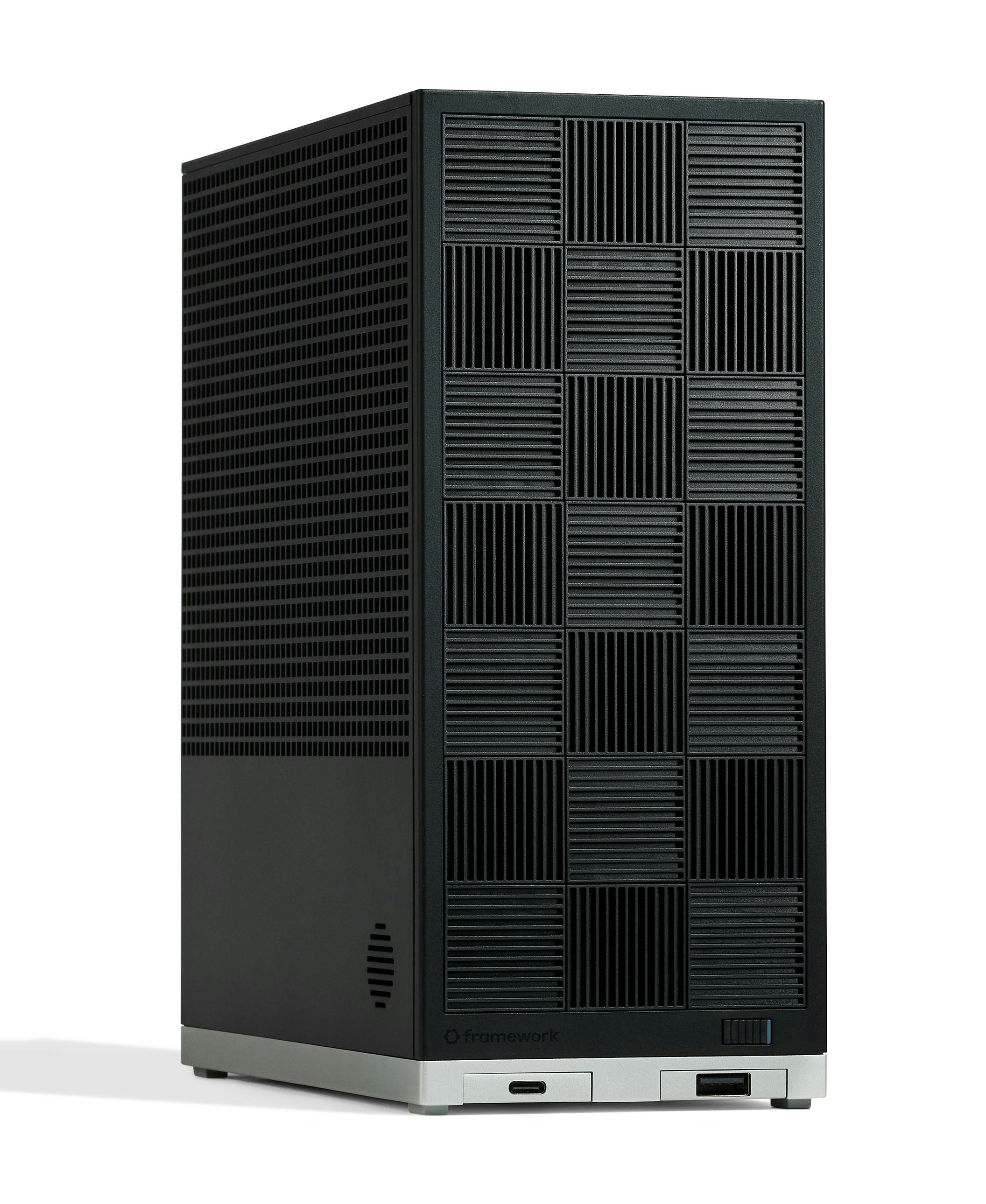
Framework Desktop with Ryzen AI Max+ 395: best compact or always-on option for large local models.
Our named example is the Framework Desktop configured with AMD’s Ryzen AI Max+ 395 and 128 GB of memory. It represents the Strix Halo class: compact systems with unusually large, fast shared memory. They suit people who want a quiet always-on machine or maximum model room per dollar and are comfortable with more setup than a Mac or NVIDIA PC.
Shop this category by memory, not by its “AI PC” label. A 128 GB Strix Halo machine can load 70B-class models entirely in memory; the sparse mixture-of-experts ones run at a usable pace there, while a dense 70B stays below reading speed. NVIDIA’s DGX Spark offers a similar 128 GB shared-memory idea at a much higher price, primarily for builders who value its software and development stack. Intel Panther Lake mini PCs can be appealing for sparse mixture-of-experts models, but their vendor speed claims need more independent testing and they are a weaker choice for dense models.
Before buying, check independent reviews, what the listed price includes, and whether you are willing to handle a less polished software path. Many mini PCs are sold barebones, and ordinary mini PCs without unusually large, fast shared memory are still small-model machines.
2026 market note: buy memory first, then check availability
The AI boom created a global memory shortage, and memory is exactly the spec local AI needs. As of August 2026, consumer memory prices are several times higher than a year ago, high-memory Macs can face build-to-order delays, and the biggest graphics cards sell far above list price.
That changes purchase timing, not the recommendation logic: check retail stock before placing a custom order, consider used and refurbished configurations with more memory, and re-check the price the week you buy. If your current machine has already hit its wall, waiting for a broad price drop is not a plan.
Avoid these expensive mistakes
- Buying for the model that barely fits today. Leave headroom for longer conversations, documents, and the next model you want to try.
- Confusing system RAM with graphics-card VRAM. On a PC, the model needs VRAM; more ordinary RAM does not substitute for it at full speed.
- Buying an ordinary mini PC because it says “AI.” Most remain small-model machines. The compact recommendations above are different because they have unusually large, fast shared memory.
- Maxing the GPU while skimping on RAM, storage, cooling, or power supply. A capable card in an unbalanced system is frustrating to live with.
Shopping Details: Adjust the Pick for Your Case
The picks above balance three things: model room, speed per dollar, and simplicity. Here’s the reasoning, so you can adjust it to your own case.
What you’ll run decides what you buy
Local AI models come in sizes, and size sets how much memory a model needs, which is the spec that decides what a machine runs well. Three classes cover the practical range: the everyday class (4B–8B) for real assistant work, the step up (12B–27B) for better nuance, longer documents, and dependable agents, and the heavyweights (30B+) for the hardest work. (The full explanation lives in our companion guide.)
Pick the class that matches the work you hit a wall on, then buy the memory tier that runs it:
| Your target class | On a Mac (unified memory) | On a PC (graphics-card VRAM) |
|---|---|---|
| Everyday (4B–8B) | 16 GB | 8–12 GB |
| Step up (12B–27B) | 32–48 GB | 16–24 GB |
| Heavyweights (30B+) | 64 GB+ | 32 GB (rare, expensive; a high-memory Mac is often the saner route) |
These targets already include breathing room. The top of a tier is a “stretch,” not a promise: a 24 GB card runs the step-up class with headroom but only stretches to its 27B ceiling. For the sizing calculation behind the table, see Can Your Computer Run Local AI? (And How to Check).
Mac or PC?
Forget brand loyalty; for local AI this is a choice between two memory strategies.
Macs are easy mode. One memory number to think about, quiet operation, no graphics-card shopping, and unified memory is genuinely simpler: a Mac with 32 GB can run models that would need an expensive dedicated graphics card on a PC. The catch: what you buy is what you keep. Mac memory can’t be upgraded later, so buy the tier you’ll want next year.
PCs win on value and upgradeability. Discrete graphics cards offer more VRAM per dollar and an upgrade path: swap the card next year instead of replacing the machine. The cost is complexity; more choices means more ways to buy a mismatched machine, like a fast processor paired with a starved graphics card.
The translation rule (you’ll need this constantly): most advice online is written in PC terms. When someone says “you need 16 GB of VRAM,” a Mac needs roughly 40 percent more unified memory to match it, because the pool is shared with everything else your computer is doing. So “16 GB VRAM” reads as “22 GB, so buy 24.” The readiness checker applies this conversion for you.
A quick word on Linux: it’s leaner than Windows or macOS, so the same hardware goes a bit further, and it’s what many AI professionals run. If you’re comfortable in a terminal, it’s the enthusiast’s path. If you’re not, Windows and macOS are the right starting points, and the concepts transfer if you migrate later.
Four questions that usually settle the choice:
- Is image generation a main goal? Lean PC with a big-VRAM graphics card.
- Want to upgrade over time? Lean PC desktop: a standard tower with a roomy case and a power supply with wattage to spare, so a bigger card can drop in later.
- Prioritize portability, quiet, and simplicity? Lean Mac.
- Building always-on automations? Lean desktop or a small always-on box (below).
Laptop, desktop, or always-on box?
One fact changes this decision more than any spec sheet: local AI holds hardware at full load for minutes at a time, and laptops respond by heating up and quietly slowing down. Ten-minute benchmark scores never show it; a half-hour of real document work does. Desktops keep their cooling headroom, their upgrade path, and their speed.
So: if you work in one place, a desktop buys more AI per dollar. If you need portability, a Mac laptop handles sustained load more gracefully than most Windows laptops.
There’s a third shape worth knowing: the always-on box. A small, quiet machine (a Mac Mini or a mini PC) that sits in a closet running your models and automations around the clock while your laptop connects to it. If you want AI working for you while the lid is closed, this is the setup that does it. Stability matters more than speed when you spec one, and one caveat: it’s a light home-server commitment (updates, remote access, backups), not hard, but budget time for the learning curve. One limit on ordinary mini PCs: most aren’t built for sustained heavy graphics work, so keep them to chat, documents, and automations rather than image generation. (The AI-class mini PCs from the compact section above are the exception on model size, though image generation still favors a discrete NVIDIA card.)
The best GPU for local AI: shop by VRAM tier, not model number
The best GPU for local AI is the one with the most VRAM you can afford; that is nearly the whole answer. Ignore the model-number arms race and shop by tier:
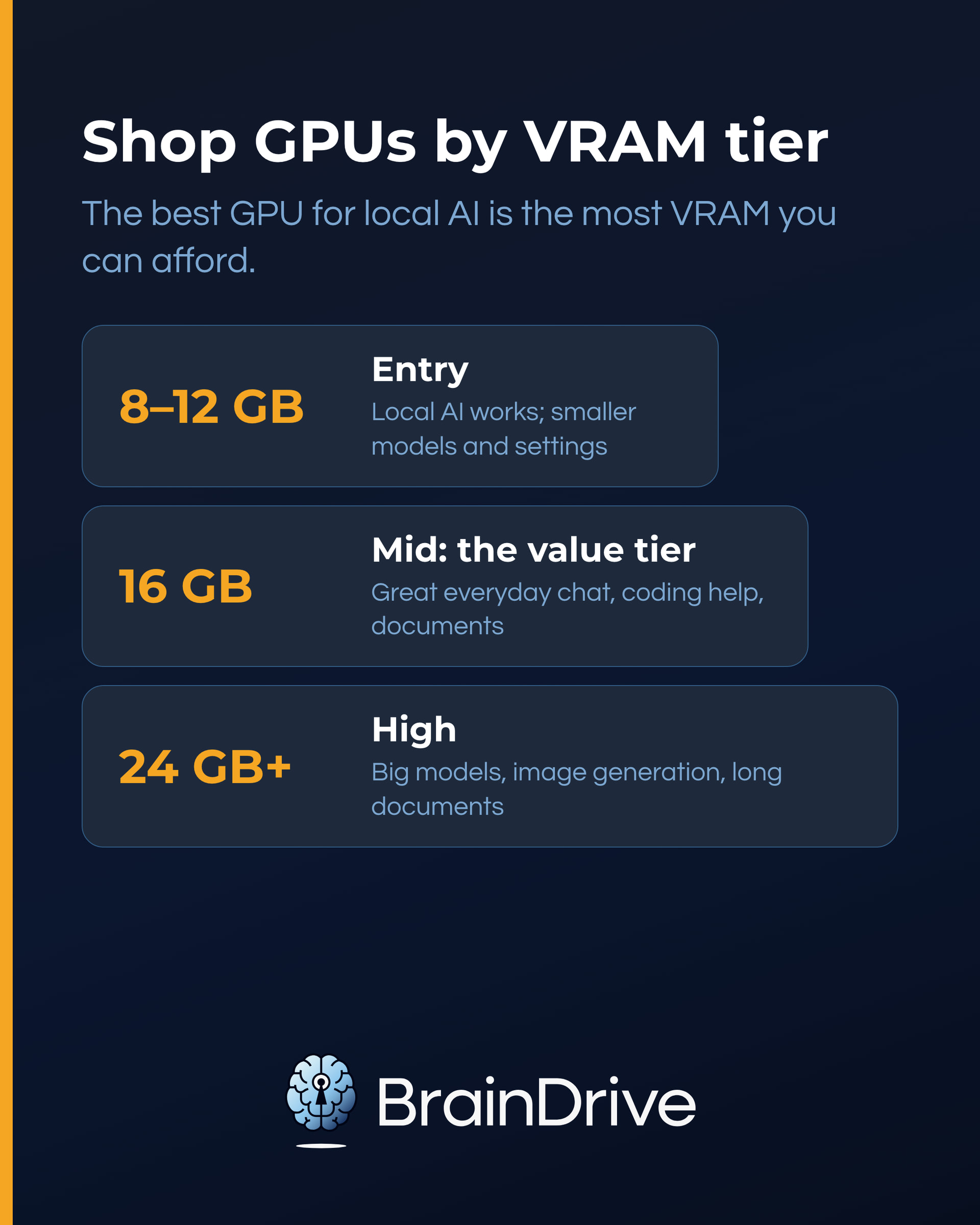
- Entry (8 to 12 GB VRAM): local AI works; you’ll pick smaller models and settings.
- Mid (16 GB VRAM): the best value tier. A great everyday experience for chat, coding help, and document work.
- High (24 GB+ VRAM): headroom for bigger models, image generation, and long documents without stress.
If image generation is your goal: this is the one workload where a discrete NVIDIA card has a clear advantage. It starts being pleasant around 12 to 16 GB of VRAM and keeps rewarding more; below that you’ll fight slow renders and out-of-memory errors. Macs can generate images, noticeably more slowly.
Two practical notes. First, NVIDIA is usually the path of least resistance; most local AI tools target it first, and AMD support, while improving, still means occasional extra steps. Second, VRAM is not upgradeable; it’s soldered to the card. The upgrade path is replacing the card, which is why the upgrade question above told you to buy the tower and the power supply with room to spare.
And the sticker to ignore: “AI PC” and Copilot+ branding is about NPU chips, and an NPU is not yet a dependable way to run the models you choose. Judge every machine by its memory, not its sticker. (The full explanation is in the companion guide.)
RAM and storage: where machines differ day to day
Memory and GPU get the headlines. RAM and SSD are why two machines with identical graphics cards can feel like different computers.
For system RAM on a PC: 16 GB is workable for chat if little else is running, 32 GB is the comfortable baseline and the right default if you’ll chat with your documents or run automations, and 64 GB is for heavy document libraries or serious always-on workloads. On a Mac there’s no separate number; your unified memory does both jobs at once, which is why the translation rule adds 40 percent. (A 2026 note: the memory shortage hit system RAM too; a 32 GB DDR5 kit that cost about $100 a year ago now costs several hundred dollars. The 32 GB baseline advice stands, it just stopped being the cheap part of the build.)
For storage: models run from under 1 GB to about 20 GB each, and they accumulate fast. 512 GB is tight, 1 TB is workable, 2 TB is comfortable. Look for the word NVMe in the storage line of the spec sheet; it loads models much faster than the older kind (called SATA), and nearly everything sold new is NVMe. All modern Macs already have fast storage built in.
The classic mistake, on both platforms: maxing the GPU and skimping everything else. A 24 GB graphics card bolted to 16 GB of RAM feels sluggish the moment you do more than chat.
Still undecided? Match the machine to your life
If the price-band picks don’t map cleanly onto your situation, find yourself here instead. Each profile names the platform and form that usually fit, the band to target, and the one spec to protect.
| Profile | You want | Usual fit | Band | Protect this spec |
|---|---|---|---|---|
| Chat-First | Daily chat and coding help, simple and responsive | Mac Mini, or a midrange desktop with a Mid-tier card | Sweet spot | Model memory (unified or VRAM) |
| Docs + Agents | Chat with your documents, automations, “always ready” | Desktop or always-on box | Sweet spot | RAM (32 GB+) and NVMe storage |
| Creator | Image generation and visual work | PC desktop, NVIDIA card | Sweet spot to high-end | VRAM (16 GB+) and cooling |
| Portable | AI on the go, accepting the tradeoffs | Mac laptop | Sweet spot | Unified memory; sustained-load reviews |
| Always-On | A quiet box running agents around the clock | Mac Mini or an AI mini PC | Starter to sweet spot | Stability, RAM, storage; speed last |
Two self-checks from the course this table came from: if you picked Creator at a Starter budget, image generation will frustrate you, so adjust the budget or the expectation. And if you can’t pick a single profile, you’re optimizing for too many things at once; pick the one that describes the next 12 months.
The Pre-Buy Checklist
Four checks before you commit:
- Memory headroom: you’re buying above your target model class’s requirement, not at it.
- Storage: 1 TB NVMe unless you’ve made peace with constant cleanup.
- Upgrade path: if that matters to you, it’s a standard tower with a quality power supply; Macs and laptops are buy-once decisions.
- Return window: this is your real benchmark. In the first week, run your target model with your real workload, including your longest documents. If it can’t do that comfortably, it goes back.
Write Your Decision Sentence
If you can fill this in, you’re ready:
“I’m buying a [Mac / Windows PC] in [laptop / desktop / always-on box] form, in the [starter / sweet spot / high-end] band, because my machine fell short at [the specific wall you hit], and I’ll verify it runs [your target model] during the return window.”
Can’t fill in the wall you hit? That’s the guide telling you to go back and try what you own first.
One last thing worth knowing before you spend: whichever machine you choose, the most replaceable part of your AI system is the model. The parts that are uniquely yours, your context and your interface, run on any machine on this page, and they’re worth owning. (The full argument is in our main guide.)
Common Questions About Buying a Computer for Local AI
What is the best computer for local AI overall?
There are two useful answers, depending on your priority. For the best speed-for-the-price PC, buy a standard desktop tower with a 16 GB NVIDIA card, starting with the RTX 5060 Ti tier. For the simplest quiet route to serious model room, buy a Mac Mini or Mac Studio with enough unified memory for your target model class. Choose a Strix Halo compact desktop, such as the Framework Desktop, only when compact size, always-on use, or maximum model room per dollar matters more than the simplest software path.
What is the best GPU for local AI?
The one with the most VRAM you can afford. 16 GB is the value tier for everyday work; 24 GB+ buys headroom for big models and image generation. NVIDIA is the path of least resistance for tool support today.
Is a Mac good for local AI?
Yes, genuinely. Unified memory means a 32 GB Mac runs models that would need an expensive dedicated card on a PC, with one number to think about. Just apply the translation rule when reading PC-centric advice: VRAM advice × 1.4 ≈ the unified memory to buy.
How much should I spend on a computer for local AI?
The cheapest band that runs your target model class with 12 months of headroom: under $1,000 for the everyday class with patience, $1,000 to $2,000 for the sweet spot most people should target, $2,000+ only if your try-first test demanded it. (2026 caveat: the memory shortage has been pushing every band’s floor upward; the bands here were verified August 2026.)
Is an “AI PC” or Copilot+ laptop what I need?
No. That branding is about NPU-accelerated operating-system features, not the models you’d run yourself, which lean on memory and GPU today. Judge the machine by its memory. (Details here.)
Are mini PCs good for local AI?
The new AI-class ones genuinely are: AMD Strix Halo machines with 128 GB of unified memory hold 70B-class models (the sparse mixture-of-experts ones at usable speeds; a dense 70B runs below reading speed), and Intel Panther Lake minis run the new sparse models (like Gemma 4 26B) at usable speeds, at prices that undercut the equivalent Mac. The caveats: vendor benchmarks outnumber independent ones, the software path takes more tinkering than Mac or NVIDIA, and sticker prices often exclude the RAM. Ordinary mini PCs without that fast-shared-memory design are still small-model machines.
Can I upgrade my computer for local AI instead of replacing it?
Match the upgrade to your wall. On many PC desktops, storage is still a cheap upgrade, RAM is an easy one (though the shortage means it’s no longer a cheap one), and a graphics card can be swapped if the case and power supply have room. VRAM itself and Mac memory are not upgradeable; if memory is your wall on those machines, it’s a buying decision.
Where to Go Next
- Not sure you need to buy? Can Your Computer Run Local AI? (And How to Check) + the readiness checker: try what you own first.
- Bought it (or keeping it)? Run your first model: Local AI for Non-Developers: The Complete 2026 Guide.
- Understand the models themselves: How to Choose a Local AI Model for Your Computer.