
The good news is that most computers from the last several years can run a local AI model. You don’t need a brand-new, expensive computer to try local AI.
The real question however is whether your computer can run a model that does what you need it to do, at a speed you are happy with.
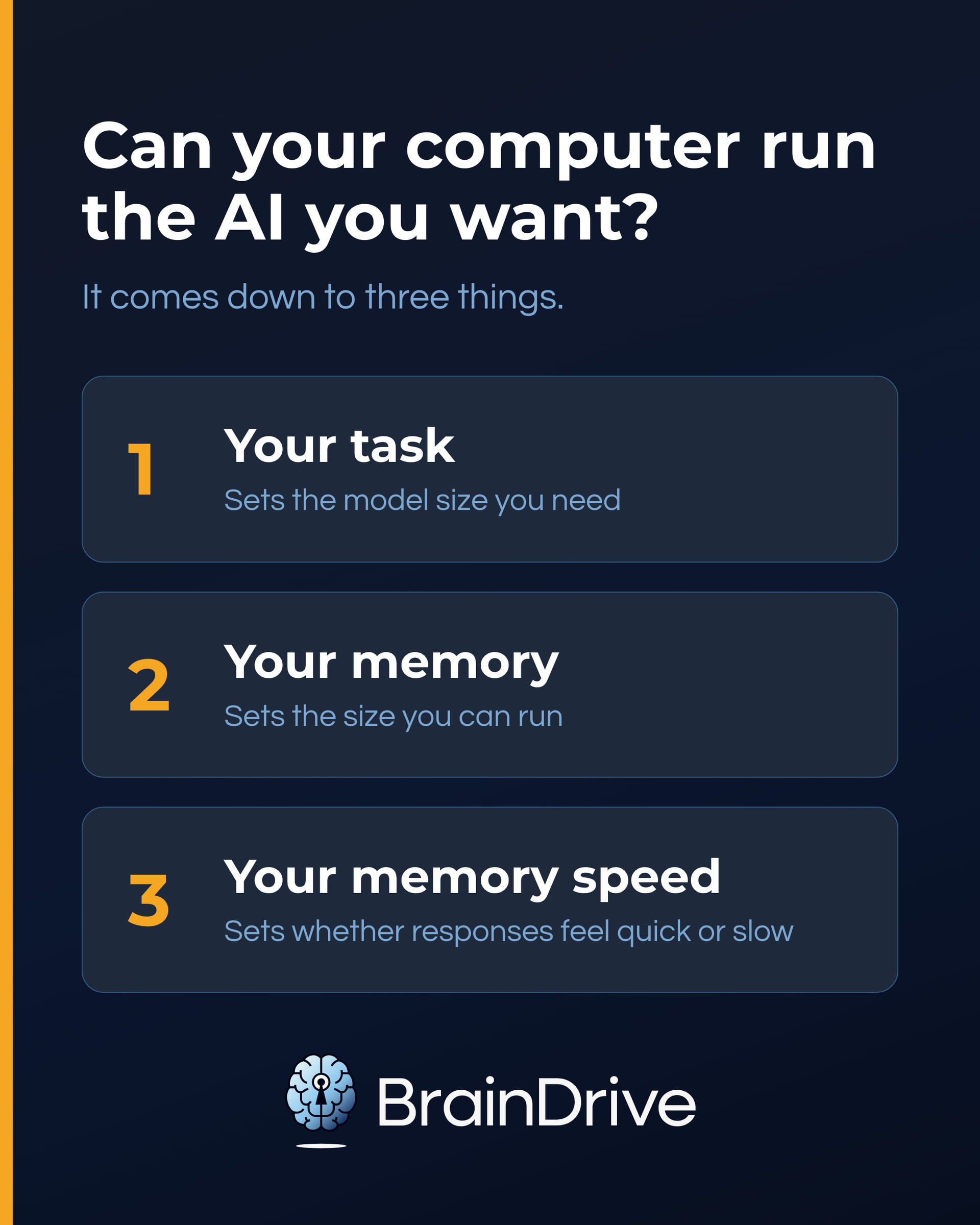
That comes down to three things:
- The complexity of your task. More complex tasks generally need larger models.
- How much memory your computer has. This determines how large a model your computer can hold.
- How fast that memory is. This determines whether responses feel quick or slow.
This guide gives you a quick way to find out. First, you’ll check a few simple specs. Then you’ll see what kind of model your computer can realistically run, how fast it should feel, and what to do if it falls short.
If you want the fastest answer, use our free local AI readiness checker. It takes about a minute and recommends a realistic starting point for your machine.
Let’s begin by finding your computer’s specs.
Step 1: Grab Your Computer’s Specs
You need one or two numbers off your machine. Two clicks on a Mac, three steps on a PC.
On a Mac
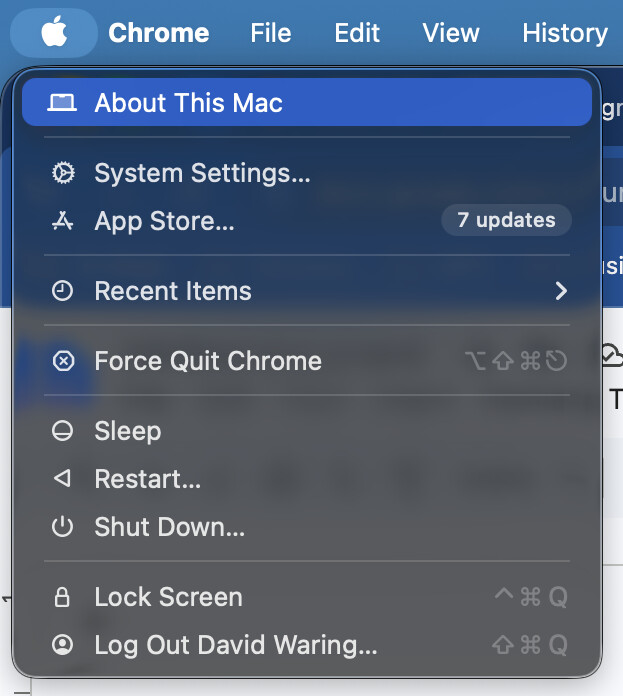
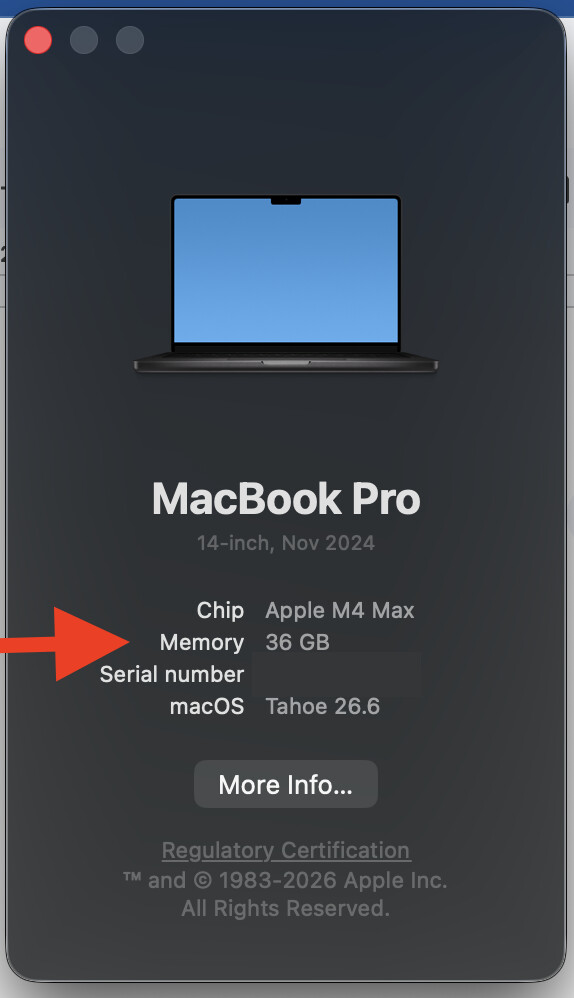
Apple menu → About This Mac. If the chip line says M1, M2, M3, or later, write down the Memory number. If it says Intel, local AI is best treated as a small experiment; a cloud model is usually the better bridge.
On a Windows PC
- Press Ctrl + Shift + Esc to open Task Manager, then choose Performance.
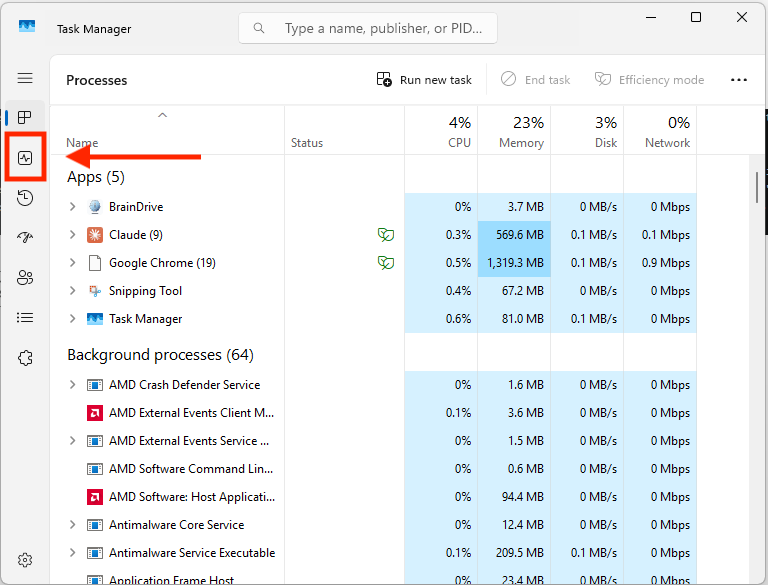
- Click each GPU entry and write down its name and Dedicated GPU Memory number.
- Click Memory and write down your total RAM.
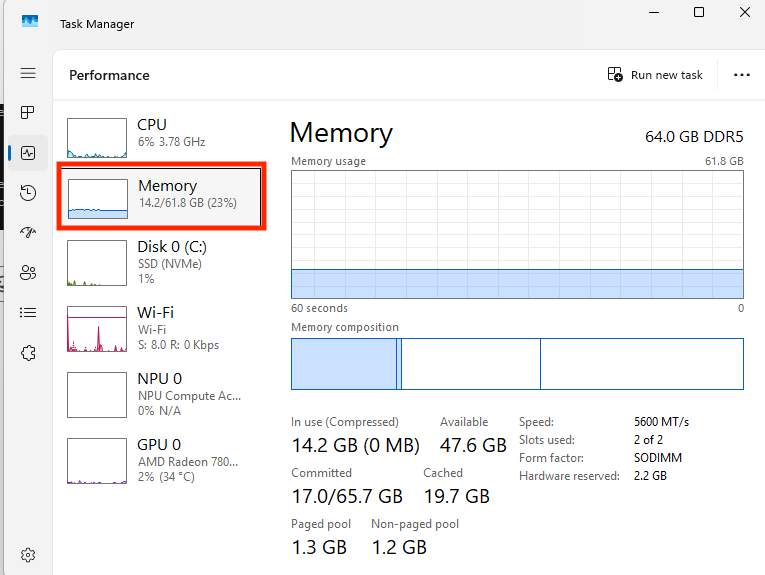
That’s all you need for now: the name of your graphics hardware, its dedicated-memory number, and your total RAM. Step 2 explains what those numbers mean.
Step 2: Understand What Those Specs Mean
You only need to answer two questions about memory: how much of it the model can use, which sets how large a model you can run, and how fast that memory is, which sets how quick it feels.
Macs: one memory number
On an Apple-silicon Mac, memory is one unified pool used by the whole computer, including local AI. The Memory number from Step 1 is the only spec you need here.
Windows PCs: one quick check
On Windows, first identify whether the graphics are dedicated or integrated. A dedicated graphics card has its own VRAM. Integrated graphics borrow regular system RAM.
If the name says NVIDIA GeForce RTX or GTX, AMD Radeon RX, or Intel Arc, and Task Manager shows several gigabytes of Dedicated GPU Memory, you have a dedicated graphics card. Use that dedicated-memory number.
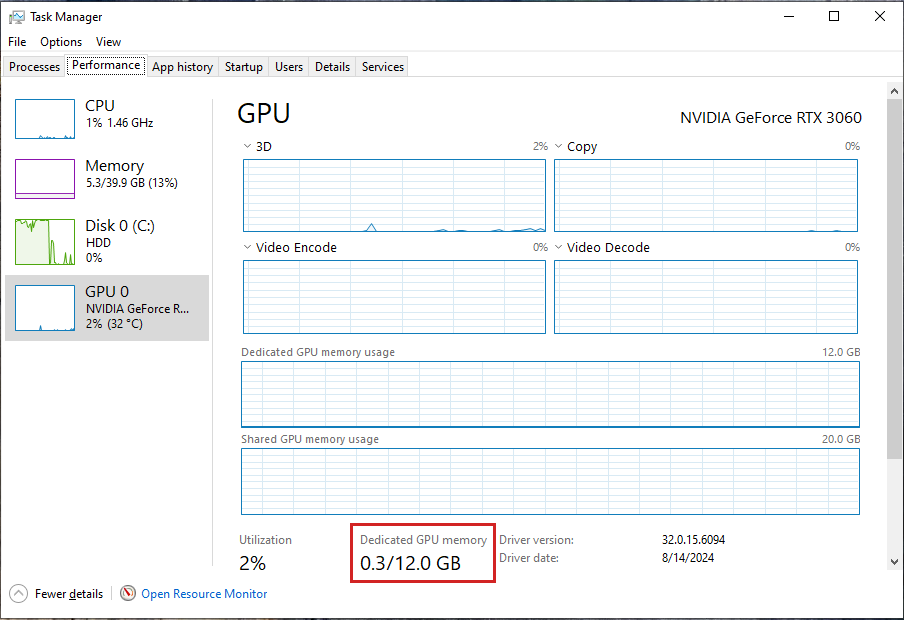
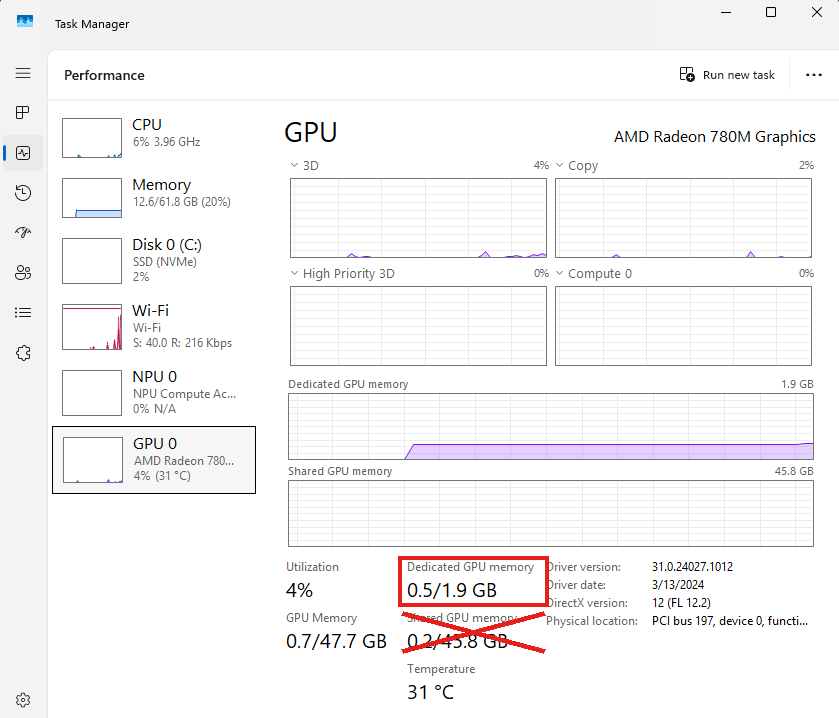
If the name says Intel UHD, Intel Iris, Intel Graphics, or AMD Radeon Graphics, usually with only one or two gigabytes listed as dedicated, you have integrated graphics. It can run local models using regular RAM. With 32 or 64 GB of RAM, an 8B model can work well, though usually more slowly than on a dedicated card. If the name and the memory number seem to disagree, search the exact name to check which kind it is.
Do not count the larger Shared GPU Memory number as graphics memory. It is just regular RAM the system is willing to lend the graphics chip. On an integrated machine, the number that matters is your total RAM from Step 1.
Some newer shared-memory PCs work more like Macs. The main examples use AMD Ryzen AI Max chips or NVIDIA DGX Spark. For these AI-class machines, use the main memory number.
Want the actual speed number? For Macs, dedicated cards, and AI-class machines, search the exact chip or card name plus “memory bandwidth.” Higher is faster, and anything in the hundreds of gigabytes per second is quick. Integrated machines are harder because speed depends on the exact RAM installed, which listings often omit. Search the full computer model name and check a detailed review. If you still cannot find it, skip the research and rely on Step 4’s try-a-model test.
One label to ignore: An “AI PC” or “Copilot+ PC” sticker refers to an NPU. NPUs power built-in operating-system features such as live captions and photo search, not the local models you choose. Most local-model apps still rely on memory and graphics hardware. Judge the computer by how much memory it has and how fast that memory is. Treat the NPU as a bonus.
Before moving on, put your computer in one bucket:
- Mac unified memory: use the Memory number.
- Dedicated card: use Dedicated GPU Memory.
- Integrated graphics: use total RAM from Step 1.
- AI-class shared memory: use the main memory number.
Step 3 uses that number to find the largest model your computer can run comfortably.
Step 3: Find the Biggest Model Your Computer Can Run Comfortably
Take your number from Step 2 and look it up. “Comfortably” means the model fits with room to breathe; these sizes are deliberately conservative, and Step 4 covers how fast it will feel:
| Your number from Step 2 | Biggest comfortable model |
|---|---|
| 8 GB VRAM (dedicated card) | about 7B |
| 12 GB VRAM | about 8B |
| 16 GB VRAM | about 14B |
| 24 GB VRAM | about 24B |
| 8 GB Mac | about 4B (compact builds) |
| 16 GB Mac or AI-class | about 8B |
| 32 GB Mac or AI-class | about 20B |
| 64 GB Mac or AI-class | about 40B |
| 8 to 31 GB RAM, integrated | about 3B (7B if you are patient) |
| 32 GB or more RAM, integrated | about 8B, at a slower pace |
For a number not in the table, the math is simple. As a thumb in the air, a model needs about three-quarters of its size number in gigabytes of memory, plus one: a 4B model wants about 4 GB, a 12B about 10 GB, a 27B about 21 GB. On a Mac or a shared-memory PC, first trim your memory number by about a third, since the whole computer shares it. Then leave about a fifth of what remains unused as breathing room; the table above already does this for you.
For your exact verdict, use our free local AI readiness checker: enter your number, choose your kind of computer, and it recommends a realistic size plus a specific starter model to run. It leaves room for your operating system and normal work, because a model that barely fits may load, but it will not feel good to use.
The goal is the largest model that runs comfortably, not the largest one that technically starts.
Want to understand model sizes, compression, and quantization? Our guide How to Choose a Local AI Model for Your Computer explains them.
Step 4: Judge How Fast It Will Run
A model can fit on your computer and still be too slow for the way you want to work. The test is simple: for a short question, once the model has loaded, a good fit starts answering within a second or two and writes at least as fast as you can read. If you find yourself waiting on the words, that model is too slow for that machine. (Long documents take longer to read in before the answer starts; that is normal.)
Running the comfortable size from Step 3, here is what each bucket should feel like:
| Your machine | Expected pace |
|---|---|
| Dedicated graphics card | Well above reading speed |
| Mac or AI-class shared memory | Faster than you can read; the biggest sizes slow toward reading pace |
| Integrated graphics (an 8B on 32 to 64 GB RAM) | Around reading speed: usable, but patient |
The reason is memory speed: generating text mostly means reading the model out of memory over and over, so the faster the memory, the faster the words come.
Did you look up your speed number in Step 2? Then you can estimate the pace yourself: divide it by the model’s download size (shown wherever you download models), and you have a best-case figure; expect a third to a half of it in practice, in words per second. Compare that to reading speed, about 4 words per second. Two worked examples: an M4 Pro Mac (273 GB/s) running an 8B model (about a 5 GB download) works out to roughly 20 words per second in practice, several times faster than most people read. A typical integrated machine (around 90 GB/s) on the same model lands just above reading speed. One happy exception: mixture-of-experts models read only some of their parts for each word, so they run faster than this estimate suggests.
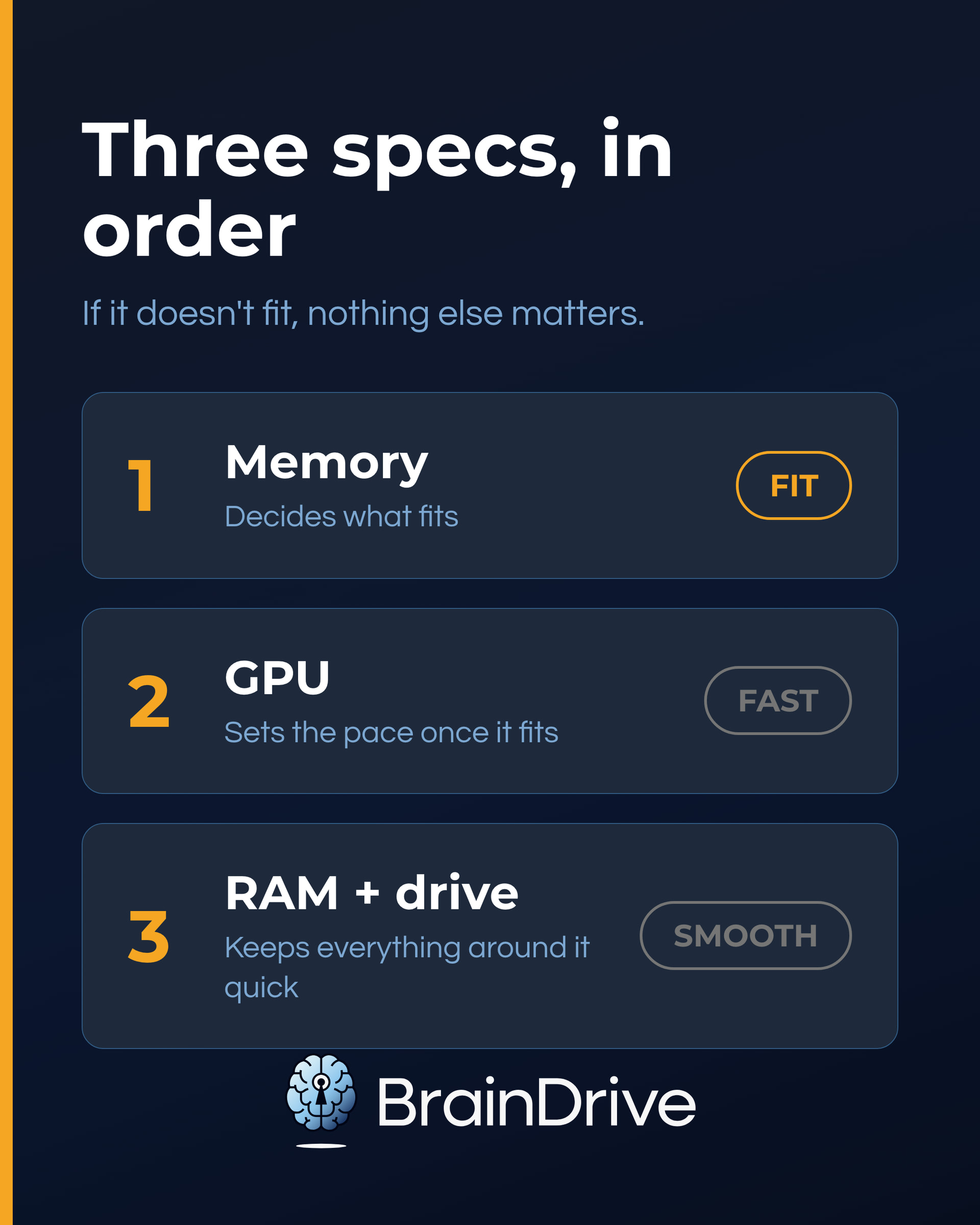
The real test costs five minutes: download a model, try it, and keep it only if it feels useful on your computer. Too slow or too large? Remove it and try a smaller one. Our complete beginner’s guide to local AI shows you exactly how, and if even the smaller sizes drag, use a cloud model for the heavier tasks.
Want the technical explanation of what makes local AI fast or slow? How to Choose a Local AI Model for Your Computer covers it.
Step 5: Match Your Computer to What You Want to Do
Now put your Step 3 number against the job you want done:
| The job | Size that does it well |
|---|---|
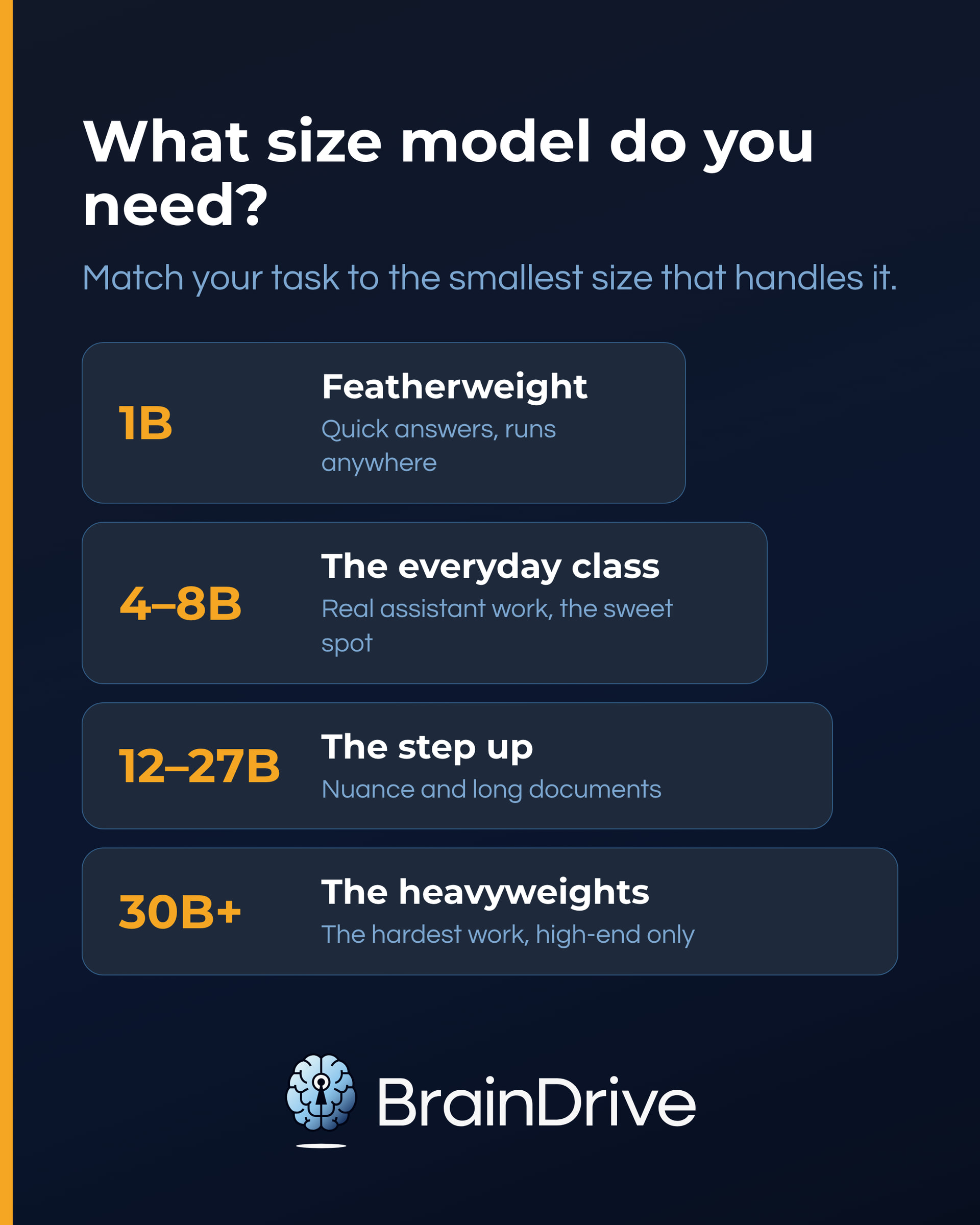
| Quick answers, cleaning up text, simple drafting | 1B and up |
| Everyday assistant work: chat, writing, summarizing, questions about text you paste in | 4B to 8B |
| Longer documents, more reliable reasoning, coding help on real projects, dependable tool use | 12B to 27B |
| The hardest work: careful reasoning, demanding writing, multi-step agent jobs | 30B and up |
If your Step 3 number reaches the row you need, the job is worth testing locally, and Step 4’s five-minute test settles it. If it falls short, Step 6 is for you.
Also check the model’s listed features for what you need: vision to work with images, tool calling for taking actions on your behalf. Small models can carry these features too, but multi-step jobs get dependable from the step-up sizes.
Test before you commit. Before downloading models or buying hardware, you can try several models in the cloud. OpenRouter makes it easy to test what actually helps with your work, then pick the closest local model your computer can run. Cloud testing tells you whether you like a model’s capability; it does not predict exactly how fast a local version will run.
The simplest rule: choose the smallest model that does the job well. A smaller model that responds quickly is often more useful than a bigger one that makes you wait.
Want model recommendations by task? See Best Local AI Models (coming soon).
Step 6: What to Do If Your Computer Comes Up Short
Coming up short is not a dead end. You have three good options, in order of cost:
- Try a smaller or more efficient model. A smaller model may still handle everyday writing, summarizing, and questions surprisingly well.
- Use a cloud model for harder jobs. Keep a smaller model on your computer for private everyday work, and switch to a more capable cloud model when you need it. BrainDrive makes it easy to work this way without changing your overall setup.
- Upgrade when you keep hitting the same limit. If the model will not fit, you need more memory. If it fits but feels too slow, a dedicated graphics card, or a newer Mac or shared-memory PC, may help. Best Computer for Local AI (2026) can help when you are ready.
One more thing worth knowing: the model is the most replaceable part of your AI system. The parts most worth owning, your context (what your AI knows about you and your work) and your interface (the system you work in), are featherweight and run on any computer in this guide, including the ones that come up short. That is what BrainDrive is designed around: those stay yours, on your machine, while the model behind them swaps between local and cloud as your hardware allows. Your computer rations which models you run locally. It does not ration ownership.
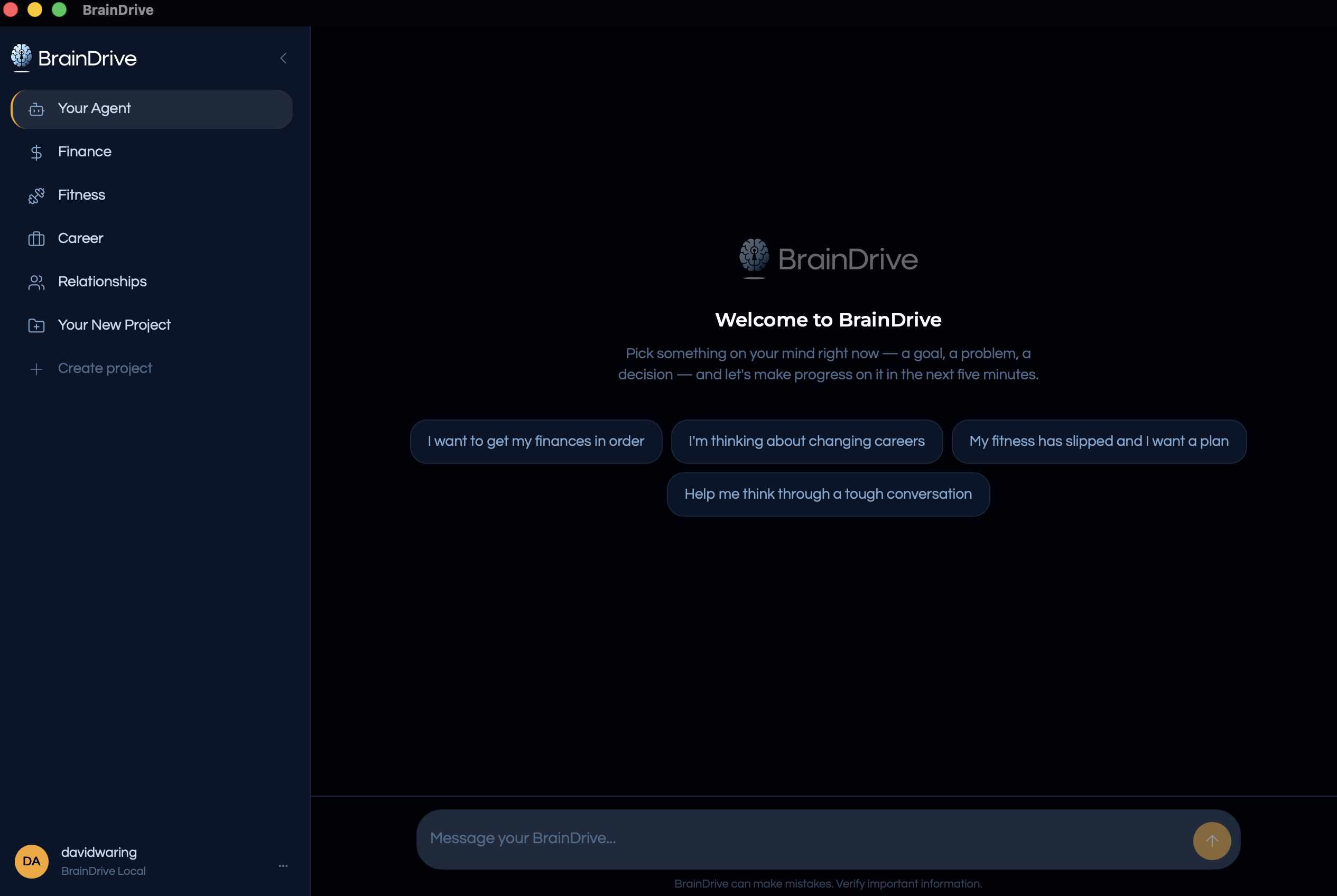
BrainDrive: your own AI interface, running on your machine
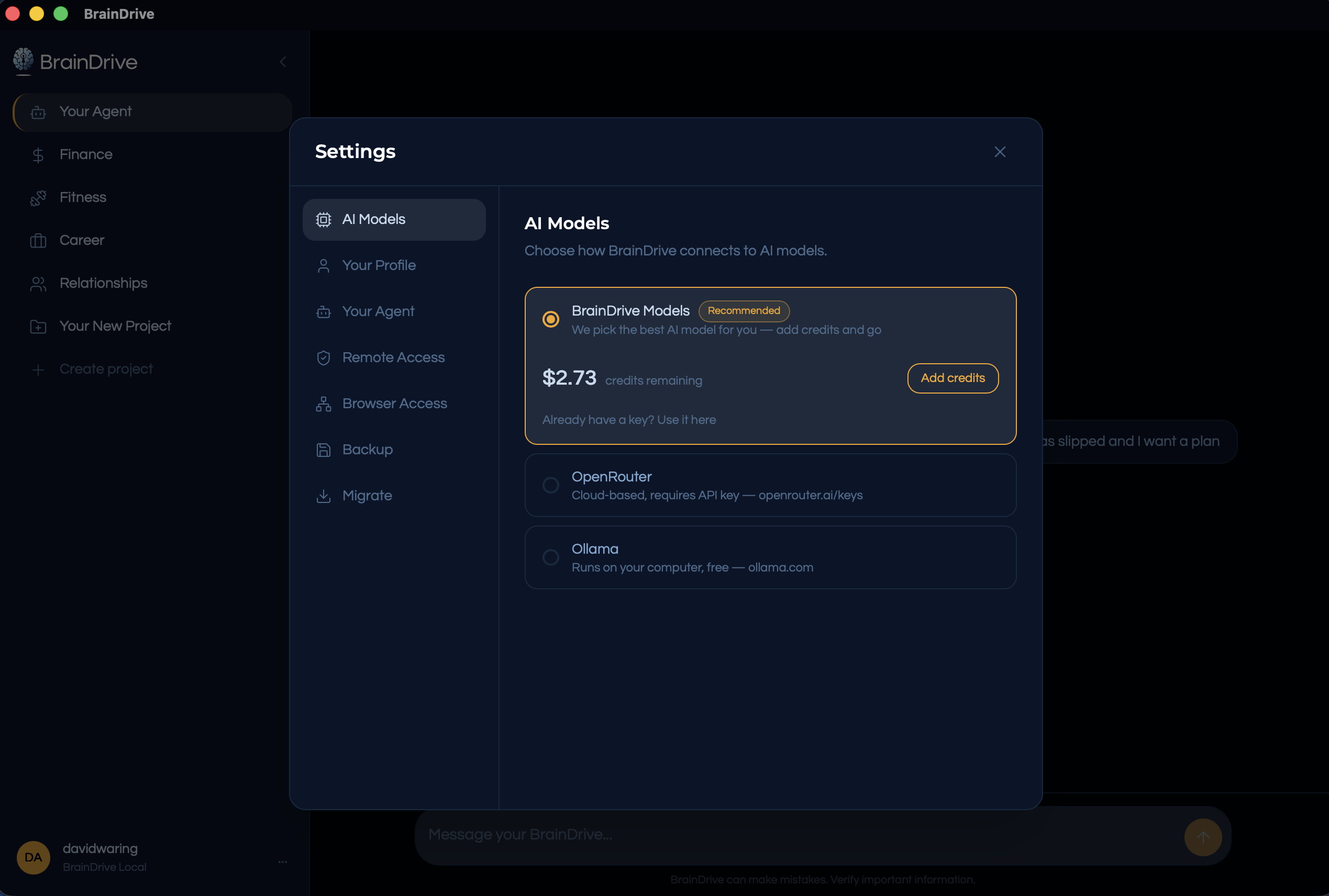
One setting picks the model behind it: BrainDrive’s hosted models, OpenRouter, or free local models through Ollama
You do not need the perfect machine. You only need a setup that does the work you care about, at a speed that feels good to you.
Common Questions About Computers for Local AI
Do I need a powerful computer for local AI?
No. Most recent computers can run some local AI models. More capable hardware buys you larger models and faster responses, not entry.
How much memory do I need?
More memory gives you room for larger models. A Windows PC with integrated graphics can still run useful models using regular RAM; 32 or 64 GB can make an 8B model a practical option. A dedicated graphics card usually makes the same model faster.
Mac or PC: which is better?
Both can work well. Apple-silicon Macs keep the decision simple with one shared-memory number. PCs offer more combinations: a dedicated graphics card is usually faster, while a 64 GB mini PC can be a strong-value choice for everyday local models.
Is a Copilot+ “AI PC” what I need for local AI?
No. That branding is about NPU-accelerated operating-system features. The models you run yourself lean on your memory and graphics hardware today; judge a machine by those, and treat the NPU as a bonus.
Where to Go Next
- Check your machine: the local AI readiness checker gives a recommendation in under a minute.
- Run your first model: Local AI for Non-Developers: The Complete 2026 Guide walks you through it step by step.
- Ready to buy? Best Computer for Local AI (2026) turns this knowledge into a purchase decision.