Choosing a local AI model comes down to two things:
- What you want the model to do for you
- How big a model your computer can comfortably run.
Your task determines the size and features you need; your hardware sets the practical limit.
The six steps below are designed for you to quickly walk the path from thousands of local model choices to the one you run.
You’ll learn how to
- Choose the size class for your task.
- Understand feature tags and how they affect model choice.
- Know the size budget of your computer.
- Shortlist two or three models from the filtered benchmark boards.
- Choose the right variant of your top candidate.
- Spend five minutes with your top candidates on your real work and keep the winner.
Steps 1 to 3 are the funnel’s constraints cut, Step 4 is the benchmark cut, and Steps 5 and 6 turn the shortlist into your keeper. The rest of this guide is those six steps in detail.
Step 1: Match Your Task to a Size Class
Every model has a size, usually measured in billions of parameters: the “12B” in Gemma 4 12B means twelve billion. Parameters represent the knowledge and behaviors a model learned during its training.
One caution: most models name themselves this way, but there is no naming standard, so some do not. When the name does not tell you the size, the model’s page will.
Bigger models can usually handle more difficult work, but they need more computer memory, and often run more slowly.
Rule one of model shopping: pick the smallest size that handles your task. Bigger is never free; it costs memory, speed, and download time.
| Your task | Size that handles it well |
|---|---|
| Quick questions, cleaning up text, simple summaries | 1B class: fast on almost anything |
| Drafting, brainstorming, everyday assistant work, coding help | 4B to 8B: the sweet spot for most people |
| Long documents, careful reasoning, dependable tool use | 12B to 27B: noticeably better judgment |
| The hardest work: complex analysis, heavy agents | 30B and up: high-end machines only |
These ranges are a starting point. The funnel’s later cuts will confirm them.
Step 2: Decide Which Features the Job Requires
Modern models carry capability tags. Each is genuinely useful and each has a cost, so match them to the job; they are also filters you will use on the benchmark boards in Step 4.
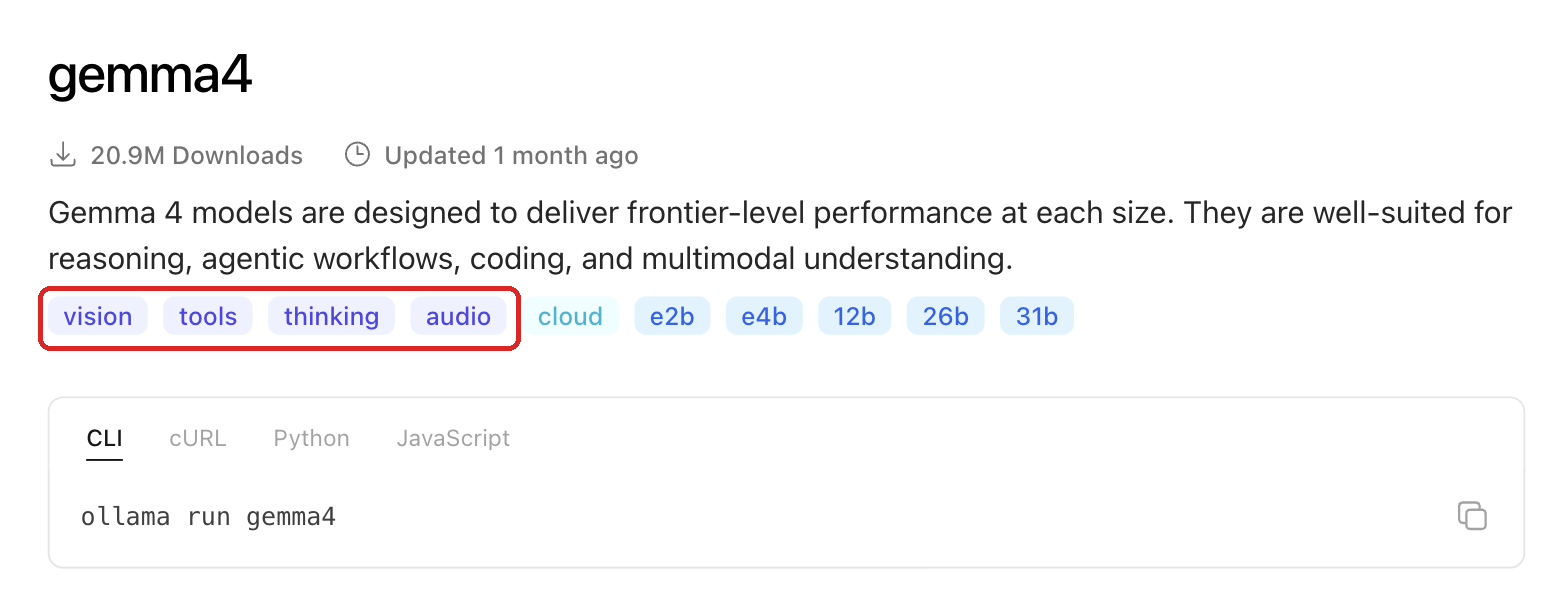
Model pages show capability tags right under the description. The highlighted ones are features; the rest are sizes.
Thinking
Thinking models reason step by step before answering, and the reasoning streams at the same speed as the answer; there is no faster gear for it.
At local speeds that matters. A token is the small chunk of text models read and write in, a bit less than a word on average, and thinking spends them before you see any answer: a model that deliberates for a thousand tokens at 18 tokens per second makes you wait nearly a minute before the first useful word. The advice: everyday tasks rarely earn that tax. Prefer non-thinking variants or the off-switch many thinking models offer, and save reasoning mode for problems that need it.
Tools
Models with tool calling can call other software: search, your files, calendars, agents. Small models fumble tool calls more often, and failed calls trigger retries that multiply every other cost, so dependable agent work starts around the 12B class.
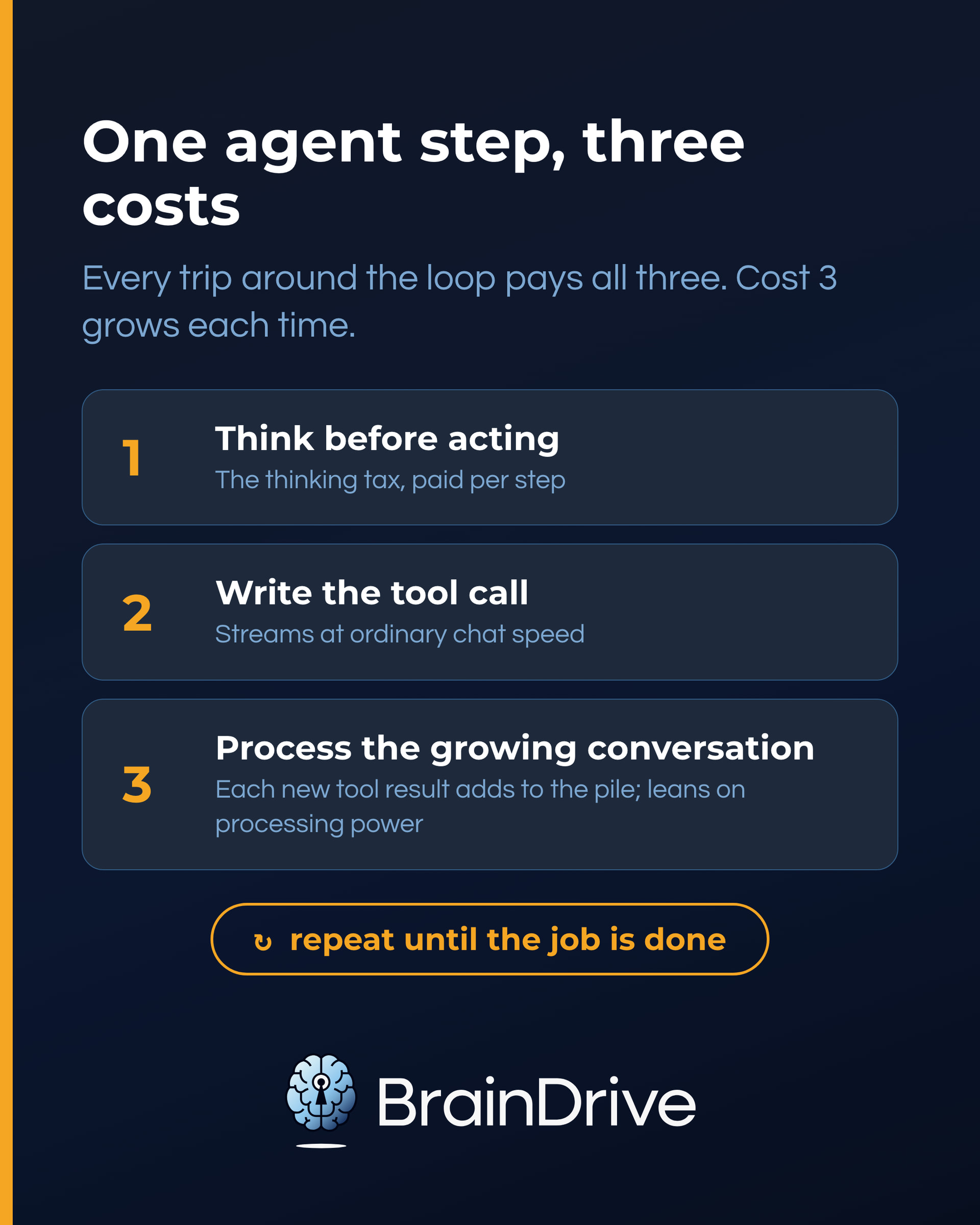
If agents are a main goal, one more thing is worth understanding, because it changes both your model choice and what to expect from your machine. An agent step is not one answer; it is a loop, and each trip around it pays three costs.
- The model may think before acting (the thinking tax, per step).
- It writes the tool call itself at ordinary chat speed.
- Before acting again it processes the growing conversation, including each new tool result, and the pile grows as the job runs. That processing leans on your computer’s processing power rather than its memory speed, which is why a machine that chats comfortably can feel much slower running agents.
Choose accordingly: tools tag, 12B and up, sparse where available, thinking budgeted per step. And if you are buying hardware with agents in mind, that side of the story is in our buyer’s guide: its Docs + Agents profile covers which machines handle agent work best.
Vision models accept images. If you want “what does this screenshot say,” look for the tag; it costs little when you need it and nothing to skip when you do not.
You will see other tags too, like audio for models that accept sound. The same rule covers them all: take a feature the job needs, skip the rest.
The quick chooser: chat and drafting need no tags. Document Q&A likes tools. Agents: the checklist above. Screenshots and photos want vision.
Step 3: Confirm Your Size Budget
Your machine’s memory number sets the budget. Which number is yours: a dedicated graphics card goes by its VRAM, a Mac or AI-class shared-memory PC by its main memory, and integrated graphics by total RAM. (Not sure which describes your machine? The hardware guide’s Step 2 finds your number in two minutes.) Then look it up:
| Your memory number | Biggest comfortable model |
|---|---|
| 8 GB VRAM (dedicated card) | about 7B |
| 12 GB VRAM | about 8B |
| 16 GB VRAM | about 14B |
| 24 GB VRAM | about 24B |
| 8 GB Mac | about 4B (compact builds) |
| 16 GB Mac or AI-class | about 8B |
| 32 GB Mac or AI-class | about 20B |
| 64 GB Mac or AI-class | about 40B |
| 8 to 31 GB RAM, integrated | about 3B (7B if you are patient) |
| 32 GB or more RAM, integrated | about 8B, at a slower pace |
For a number between the rows, or an exact verdict plus a specific starter model to run, use the free readiness checker: it does the same math for your exact machine and leaves room for your operating system and normal work.
Optional: put a number on “quick or patient”
Memory speed is what separates quick from patient. The technical term is memory bandwidth, measured in GB/s, and no computer displays it the way it displays memory size. The short version: Macs, dedicated cards, and AI-class machines can find theirs by searching the chip or card name plus “memory bandwidth” (an M4 Pro, for example, is 273 GB/s); ordinary PCs without a card should assume the slow end. The hardware guide’s Step 2 covers the lookup.
Why bother: bandwidth divided by a model’s download size is your best-case tokens per second, and a third to a half of that is a realistic words-per-second estimate. It is the fastest way to predict whether any candidate you meet in Step 4 will feel quick, before you download a single gigabyte.
Write down two things before moving on: your biggest comfortable model size (say, “about 8B”), and how it will run: quick or patient, or your words-per-second estimate if you did the lookup. That is your budget for the rest of this guide. One exception worth knowing: on machines with lots of memory but a patient pace (big-RAM PCs especially), the sparse-model rule in Step 4 can deliver more capability than this table suggests.
Step 4: Use AI Benchmarks to Build Your Shortlist
You now have a size class, a feature list, and a budget. What you do not have is names. This is the step most guides skip: turning “an 8B with tool support” into two or three specific models worth your time. Public benchmarks and leaderboards are how you do it.
An AI benchmark is a standardized test that runs every model through the same set of tasks, like knowledge questions, math problems, or coding challenges, so their scores can be compared fairly.
A leaderboard collects those scores (or, in some cases, millions of human votes) into a ranked list you can filter and browse. Together they are the closest thing the model world has to product reviews.
Where to look
- Artificial Analysis runs independent measurements across open models you can run locally, and lets you filter by open weights and model size. It is the best place to see quality per size class at a glance. (Its speed numbers are cloud speeds, not yours; use it for quality and size.)
- LMArena ranks models by blind human preference: people compare two anonymous answers and vote. It is the best single signal for “which model feels smartest in normal use,” filterable by category, though not by model size.
- Task-specific boards exist for the tags that matter to you: the Berkeley Function-Calling Leaderboard for tool use, and various coding leaderboards for programming help.
Boards evolve and new ones appear; searching “LLM leaderboard” plus your task will surface the current ones. The method matters more than any specific board.
Filter first, then compare
The single most important move: restrict your comparison to your size class and the open models you can actually run before you weigh anything. A 70B model outscoring your candidates tells you nothing you can use; so does a proprietary cloud model with no download. In practice that is a two-board workflow: filter on Artificial Analysis for open models in your size class, then sanity-check how your candidates stand on LMArena. Apply your feature needs too: if you need tool calling, compare on the tool-calling board, not the general one.
Give a sparse model a slot
One kind of candidate deserves special treatment. A classic dense model uses every parameter for every word it writes: one number sets its quality, its memory appetite, and its speed cost. A sparse model (also called mixture-of-experts or MoE) stores all of its knowledge but activates only a small slice per word. Gemma 4 26B A4B is the pattern in one name: 26 billion parameters of knowledge, about 4 billion doing the writing at any moment.
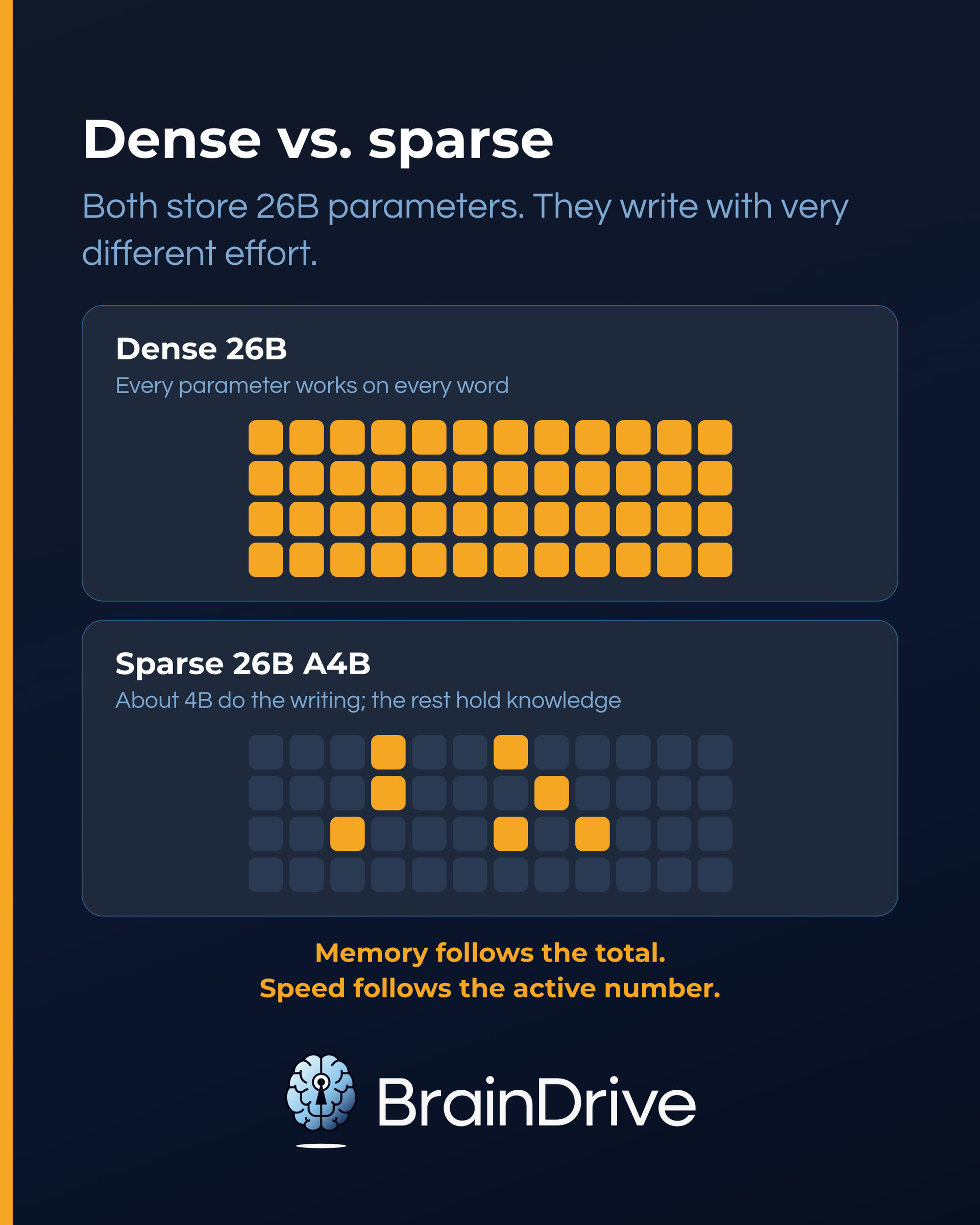
The rule to remember: memory follows the total; speed follows the active number. A 26B A4B still needs the memory of a 26B, but writes at closer to 4B pace. On machines where memory is roomy and speed is the bottleneck, big-RAM PCs and mini PCs especially, this is the most useful trick in the guide: step-up-class capability at a pace dense models that size cannot touch. On the boards, sparse models are listed at their total size; their scores tell you how well the quality holds up. If one fits your memory budget, put it on the shortlist.
How to read the scores
Three caveats keep benchmark scores in their place:
- A few points apart means tied. Well-known tests leak into training data and get tuned against, so small gaps are noise. Between two near-tied models, take the one that fits your memory with more room to spare.
- The score was not measured on your setup. Boards test the hosted version, usually in the cloud. You will run a compressed Q4 file on your own hardware: close in quality, but not identical, and the board says nothing about speed on your machine.
- Benchmarks measure the test, not your work. A model can top a reasoning board and still be mediocre at your newsletter drafts. That is why the funnel ends with your own test, not a leaderboard.
What you leave this step with: a shortlist of two or three models in your class, sparse candidate included if one exists at your quality level.
Step 5: Pick the Exact Variant to Download
Your shortlist is model families; what you download is a specific variant, and the listings look like alphabet soup: gemma4:26b-a4b-it-qat, Q4_K_M, GGUF. Nearly every piece means something, and this table decodes the ones that matter:
| Tag | What it means | What to do with it |
|---|---|---|
| 12B, 26B… | Total parameters: capability and memory appetite | Match to your size budget |
| A4B (after a size) | Sparse model: activates only ~4B parameters per word it writes | Big-model quality at small-model speed (Step 4) |
| E2B, E4B | “Effective” size: performs about like a 2B or 4B | Judge capability by the E-number, but check the actual download size for fit |
| it / instruct | Tuned to follow instructions in conversation | This is the variant you want; “base” models are for developers |
| qat | Quantization-aware trained: built to stay sharp when compressed | A good sign at small sizes |
| Q4, Q8, Q4_K_M | Compression level (quantization, explained below) | Q4 is the everyday default |
| thinking / tools / vision | Capability tags (Step 2) | Match to the job, not the hype |
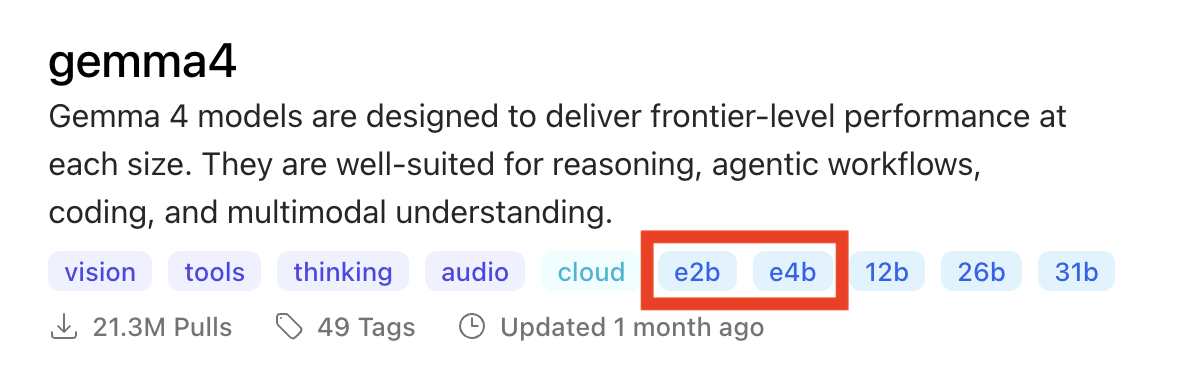
The same tag row as Step 2, read for size this time: e2b and e4b are the compact builds; 12b, 26b, and 31b are the full ones. A model family that suits your machine does not mean every download does, so check the size tag before you click.
The default grab, if you want to skip the details: the instruct variant at Q4. Here is what those choices mean.
Quantization, in plain English
Here is the term you will see most and need to fear least. Normally a model stores each parameter in full precision, like painting with millions of distinct shades. Quantization switches to a smaller box of crayons: fewer shades, nearly the same picture, far less space and effort.
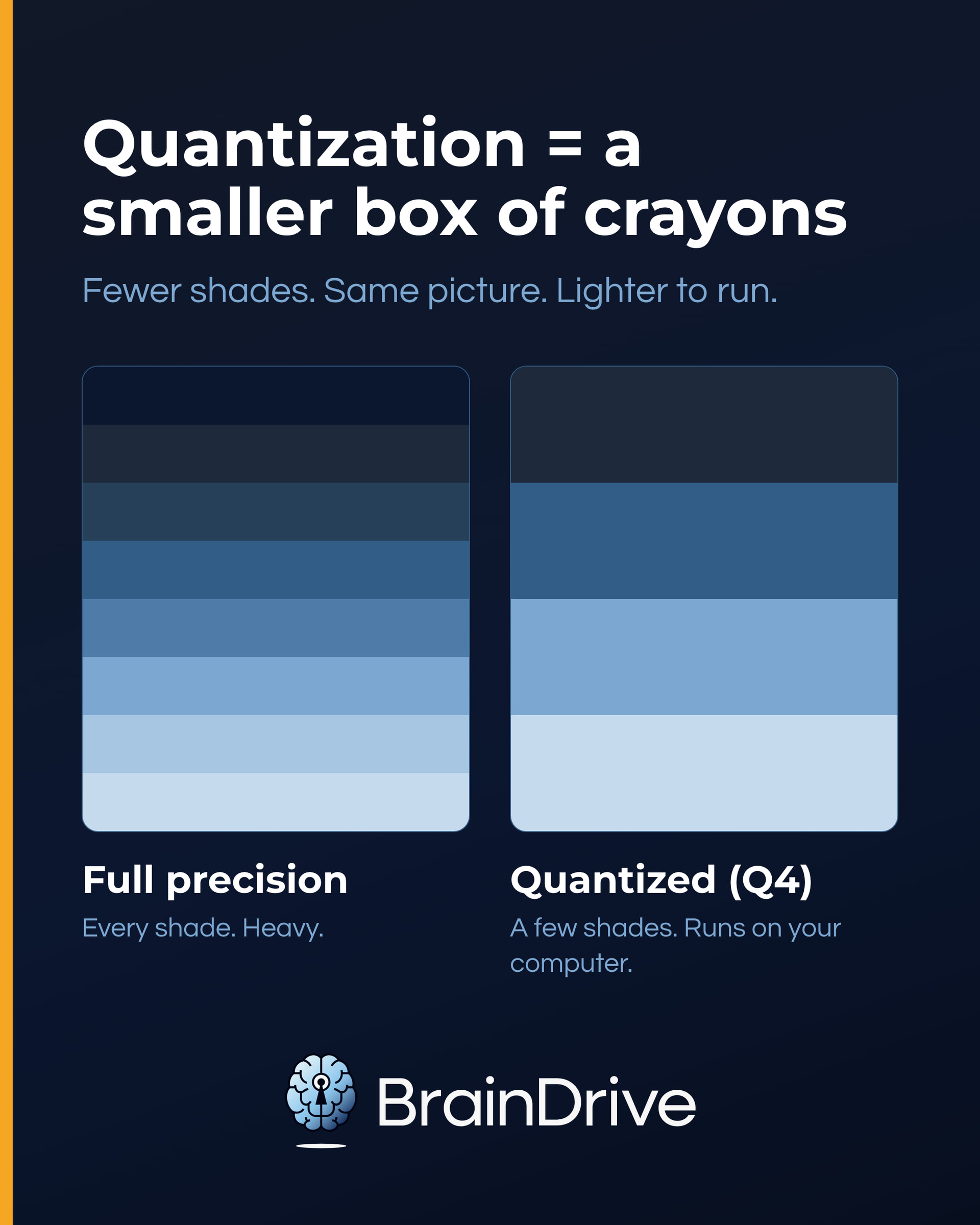
A quantized model:
- Uses much less memory
- Usually runs faster
- Takes far fewer resources to run
- Gives up a little nuance, usually less than you would notice
The labels tell you how small the crayon box is: Q8 keeps more shades, Q4 keeps fewer. The practical rules:
- Q4 is the everyday default. It is the balance point, and it is almost certainly what you are already running: the standard downloads from Ollama and similar tools are Q4 out of the box.
- Q8 when the quality of the answer really matters and you have the memory for it. Precision work earns the extra gigabytes; everyday chat does not.
- Below Q4, expect visible trade-offs. Useful for squeezing a model onto a small machine, but test it on your real work.
GGUF: the file format you will keep seeing
GGUF is the standard file format for packaging models to run on normal computers: the weights and settings in one place, usually already quantized. Think of it as the .mp3 of AI models: a compact, portable file the popular local apps can open. If a model is offered as GGUF, that is a good sign it is built for local use. If you use Ollama or similar apps, they handle the format for you; you never need to touch the file directly.
Step 6: Run the Five-Minute Test and Keep the Winner
Download your top candidate and run your actual work on it for five minutes. Not a puzzle from a benchmark: your email draft, your document questions, your real task. (Never run a local model before? Our complete beginner’s guide walks you through the whole setup in plain English, no code required.) Two things to watch while you do:
Your memory monitor. On Windows, Task Manager’s Performance tab shows memory in use; on a Mac, Activity Monitor’s Memory tab does the same.
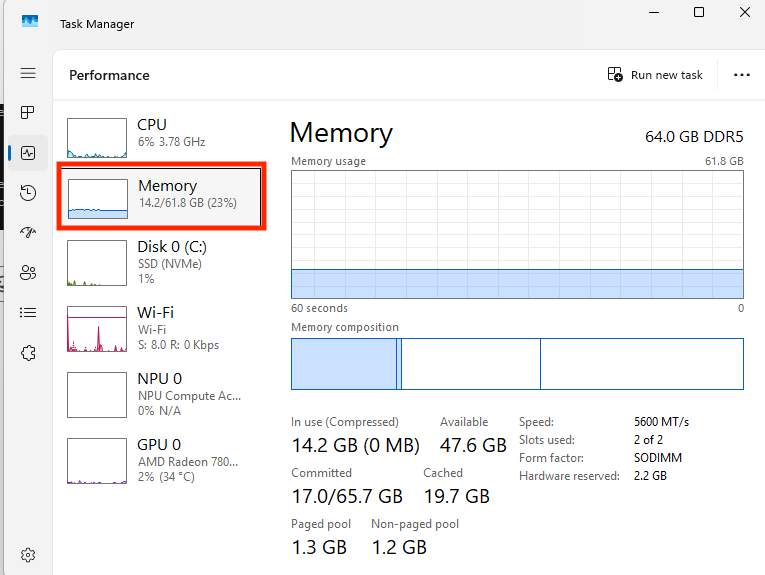
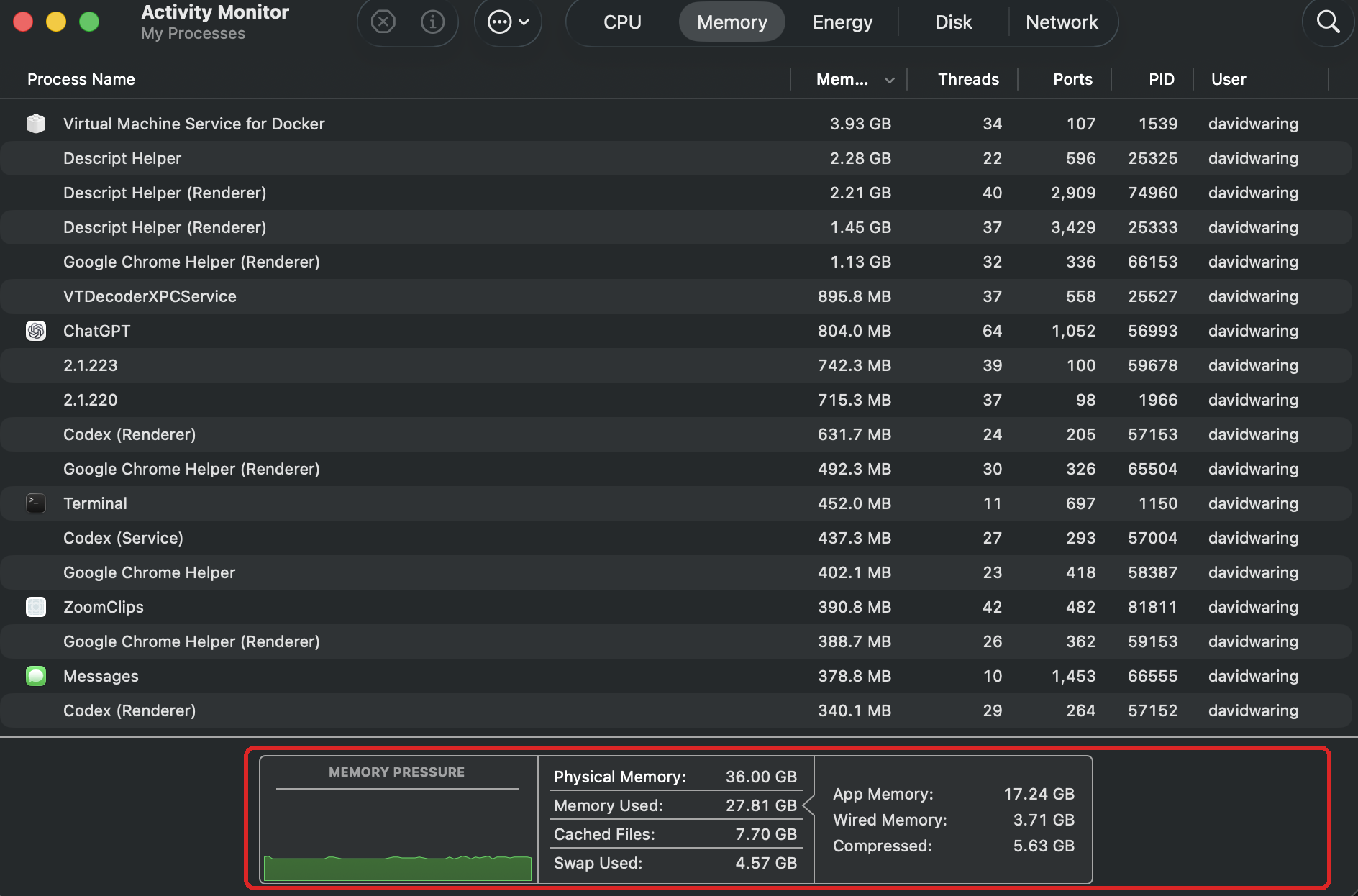
The bottom pane is the part to watch: Memory Used and the Memory Pressure graph.
The download size is not the running size. When a model runs, its weights load into memory and it adds a working memory on top (the technical term is a KV cache) that grows with how much conversation it holds; how fast it grows depends on the model’s architecture, not its parameter count.
We measured a popular 4B model that downloads at 2.5 GB but occupies 7.5 GB once running at its default settings, while Gemma 4’s compact E2B downloads at 4.3 GB and runs in about 3.7 GB. The download number predicts neither direction. If memory is tight, use a smaller model or reduce the context length in your app’s settings.
Whether the answers are actually better. Bigger is not automatically better. A larger model is slower, hungrier, and no guarantee of a better answer on simple tasks. If the smaller candidate on your shortlist handles your real work, it is the better model for you.
Keep the winner. If your top candidate disappoints, the next name on your shortlist is one download away. If nothing on the shortlist satisfies, move one notch up the size ladder if your budget allows, or revisit the board with different filters, and run the test again.
Keep your own test set
If you are going to spend the download time, spend two more minutes building a test you can reuse. Put the five or six prompts that represent your real work in a notepad file: your kind of email, your kind of document question, the task you already know a good answer to. Then ask every model you try the same list. That is what makes the comparison apples to apples instead of a vague sense of which session felt better, and the list gets more useful with every model you run through it. Once a model is downloaded, five minutes is the whole cost of judging it.
The Model Is the Most Replaceable Part of Your AI System
One of the best parts of local AI is that it makes swapping models easy. Unlike tools like ChatGPT, you’re not stuck with a small set of models that the company gives you.
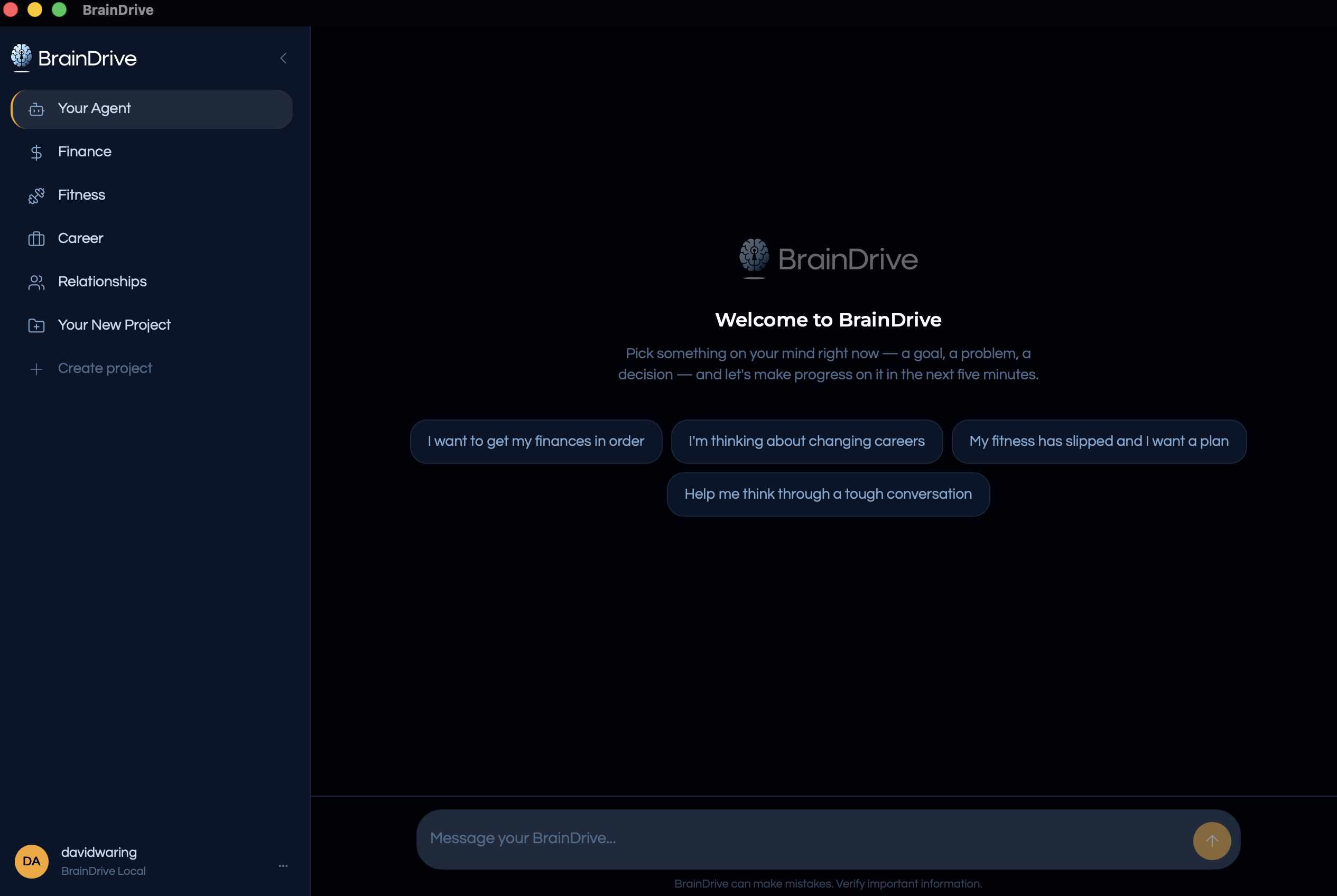
BrainDrive: your own AI interface. One setting swaps the model behind it: free local models through Ollama, cloud models through OpenRouter, or the easy button: add credits and go.
What is not swappable, however, is your context: what your AI knows about you and your work. That’s what makes a model personal to you, and what you want compounding for your benefit, not someone else’s.
That’s why we built BrainDrive.
It’s MIT licensed, so your copy is genuinely yours. It’s designed not just to run your models locally, but to build and compound your context locally as well, so the most important part of your AI system (your context) always stays under your ownership and control. Choose a cloud model for a task and only that request goes out; the context itself lives with you.
Try BrainDrive for free today.
Common Questions
What are AI benchmarks and can I trust them?
Standardized tests and leaderboards that compare models on knowledge, reasoning, coding, or human preference. Trust them for what they are: a way to build a shortlist within your size class. Do not trust small score gaps (tests leak and get tuned against), and remember scores come from the full-size cloud version, not the compressed file you will run. Your own five-minute test outranks any leaderboard.
What is quantization in AI?
Compression for AI models: parameters are stored with less precision, like fewer crayon shades, so the model uses far less memory and runs faster with only a small quality trade-off. The standard local downloads are already quantized (usually Q4).
What is a GGUF file?
The standard file format for quantized models that run on everyday computers, the .mp3 of local AI. Apps like Ollama handle GGUF files for you automatically.
Is a bigger model always better?
No. Bigger buys capability on hard tasks and costs memory and speed everywhere. The best model is the smallest one that does your work well; test on your real tasks, not benchmarks.
What is a mixture-of-experts model?
A model that stores all of its parameters but activates only a small subset per word, like Gemma 4 26B A4B: 26B of knowledge, about 4B doing the writing. You get big-model quality at closer to small-model speed, at big-model memory cost.
What is the best local AI model right now?
That is a picks question, and picks go stale; our Best Local AI Models guide (coming soon) maintains the current recommendations by task and machine. This guide is the durable half: how to judge any model, whenever you read it.
Where to Go Next
- Get your machine’s numbers: Can Your Computer Run Local AI? (And How to Check), plus the readiness checker.
- Run your first model, step by step: Local AI for Non-Developers: The Complete 2026 Guide.
- Just want the picks? Best Local AI Models (coming soon).