
As a BrainDrive owner you have 3 options for the AI models you use to power your BrainDrive:
-
BrainDrive Default — The easy button. Add a few dollars in credits and you’re up and running with a powerful cloud-based AI model. This is the option you set up in the course.
-
OpenRouter — A service that gives you access to hundreds of cloud-based AI models from different providers, all through one account. You can learn more about using OpenRouter in your BrainDrive here.
-
Ollama — Free software that lets you download and run AI models directly on your computer. 100% free, 100% private, works offline.
In this post I’m going to show you how to run local AI models in your BrainDrive using Ollama.
What Is Ollama?
Ollama is free software for running AI models locally on your computer.
This means instead of sending your data off your computer to use an AI model in the cloud, you can keep all your data on your computer for 100% privacy.
Once you’ve downloaded and installed Ollama and the models you want to use with it, you don’t even need an internet connection to run your BrainDrive. You can do it completely offline.
And if that weren’t enough — when running AI models on your computer, the only cost is your computer and the electricity to power it. So you can run your AI system basically for free.
What’s the Downside?
The power of the AI model you can run locally via Ollama is directly dependent on the power of your computer.
In order to run a model as powerful as what you get with systems like ChatGPT or the BrainDrive Default, you would need a computer that costs tens of thousands of dollars.
However, this does not mean that smaller models which you can run on a modern laptop are not useful. The interview, align, plan, execute process that BrainDrive is built around is designed to be simple, but powerful.
So, while you are unlikely to get the same level of experience with a local model as you do when using the BrainDrive Default, you might be surprised at how close you can get.
And the good news is you don’t have to choose one or the other. You can use Ollama for some things and the BrainDrive Default for others — and switch between them anytime. Your Memory, your projects, your specs and plans all stay the same. You’re only changing which AI model powers the conversation.
Setting It Up
The setup takes about 5 minutes. If it doesn’t work well on your computer, you can always switch back.
Step 1: Install Ollama
Go to ollama.com and download the installer for your computer.
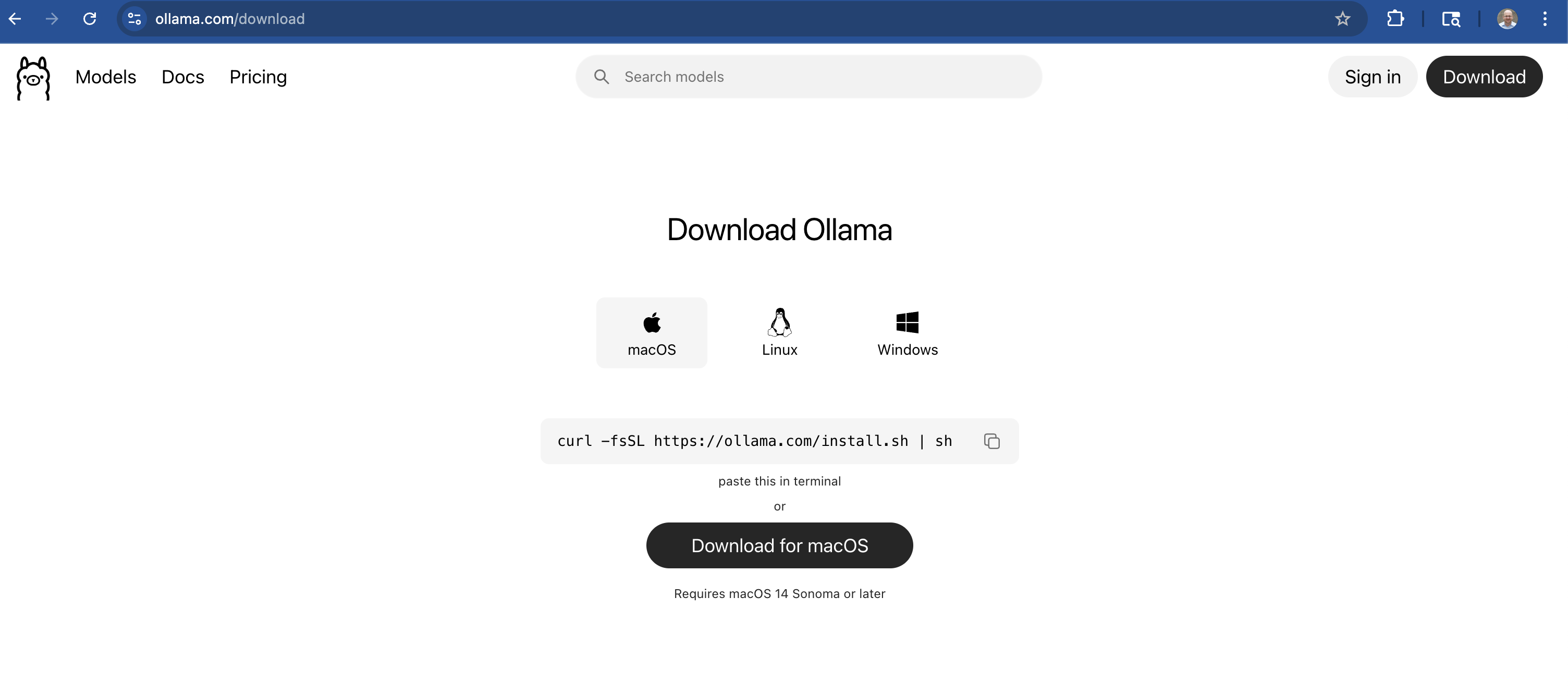
Run the installer. Once it’s done, Ollama runs quietly in the background — you won’t see much happen, and that’s normal.
Step 2: Connect Ollama to Your BrainDrive
Open your BrainDrive and go to Settings → Model Providers.
You’ll see three options: BrainDrive, OpenRouter, and Ollama. Click on Ollama.
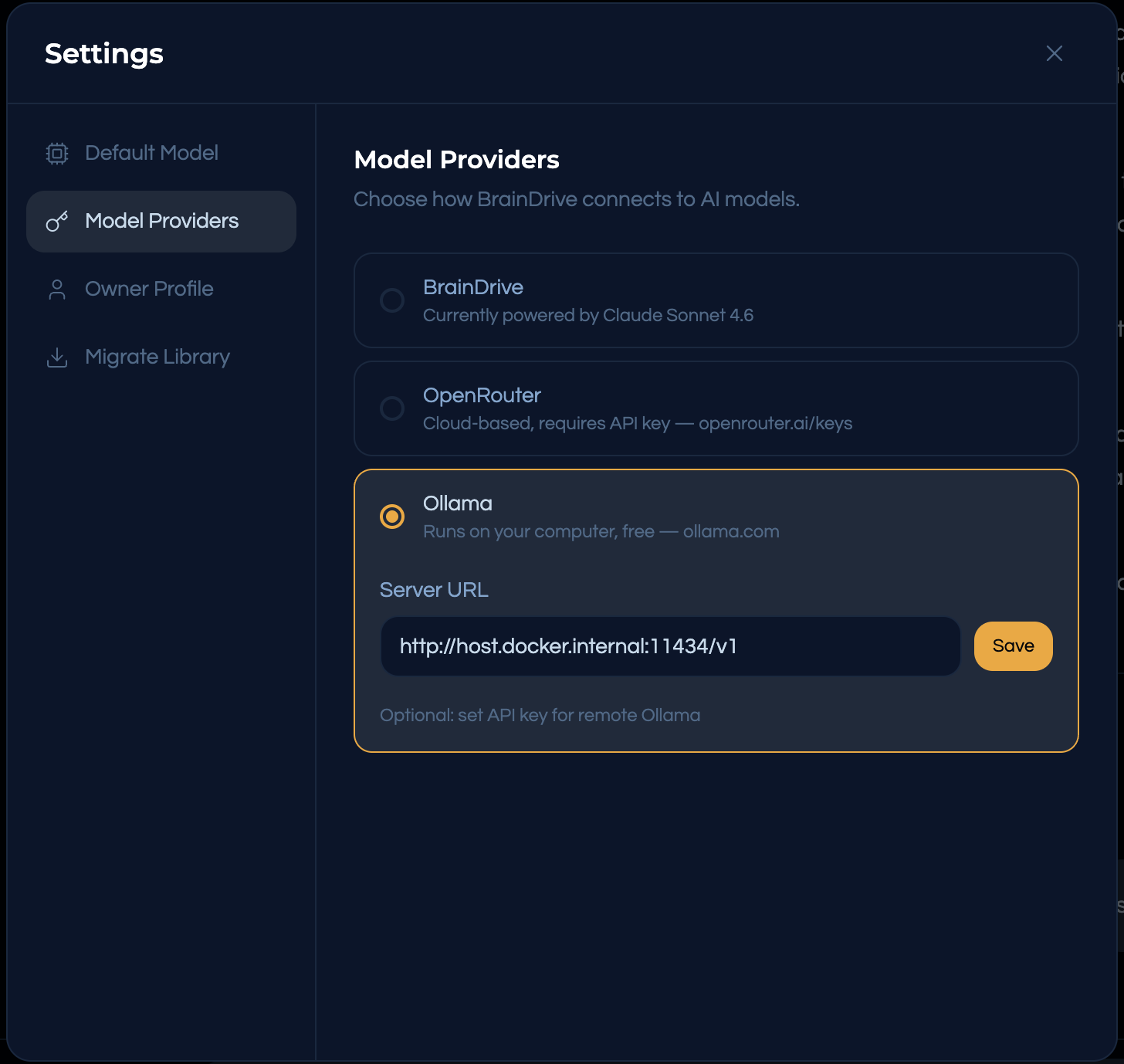
BrainDrive will detect Ollama automatically. You’ll see a Server URL field that’s already filled in — don’t change it, it’s how BrainDrive talks to Ollama on your computer. No keys to enter, no accounts to create — it just connects.
Step 3: Download and Select Your Model
Now go to Settings → Default Model. You’ll see a “Pull a new model” field at the bottom of the page. This is where you download AI models to your computer.
Which one do I pick? It depends on how much memory (RAM) your computer has. If you’re not sure, Google “how much RAM does my computer have” — it takes 30 seconds to check.
-
If you have 16GB of RAM or more — type gemma4:26b and click Pull. This is Google’s Gemma 4 model. It’s a larger model that delivers strong performance, but needs at least 16GB of RAM to run well.
-
If you have less than 16GB of RAM — type gemma4:e4b and click Pull. This is a smaller version of Google’s Gemma 4 that’s designed to run well on lighter hardware.
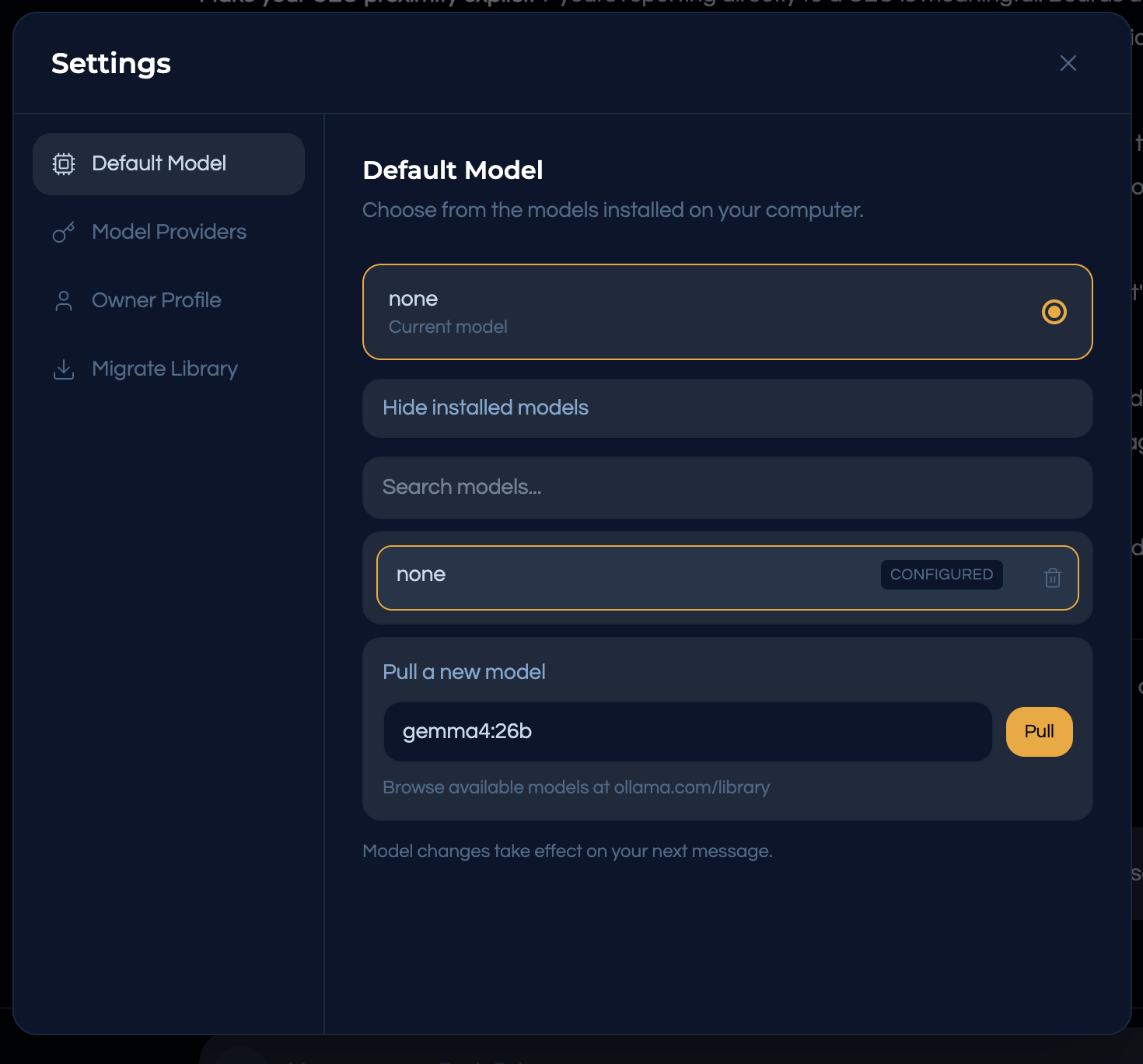
BrainDrive will download the model for you. It will take a few minutes depending on your internet speed.
Once the download is complete, your model will appear in the list and be selected as your current model.
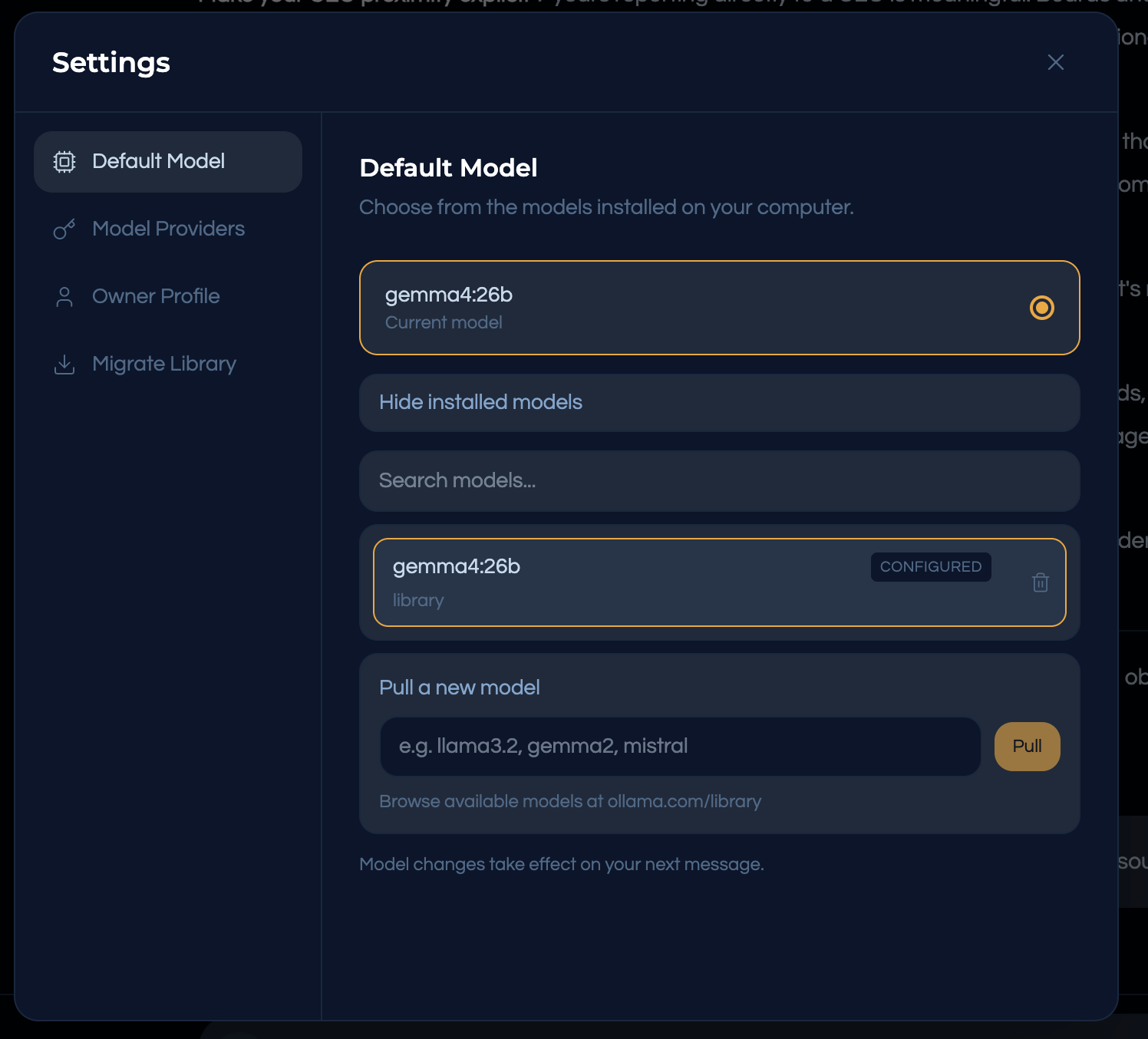
That’s it. Your BrainDrive is now running entirely on your computer — free and private.
Good to Know
You can download more models anytime. Go to Settings → Default Model and use the “Pull a new model” field to download another one. You can browse all available models at ollama.com/library.
Ollama needs to be running. Just like Docker needs to be running for BrainDrive to work, Ollama needs to be running for your local models to work. It usually starts automatically, but if your models aren’t showing up in BrainDrive, check that Ollama is running.
You can switch back anytime. Go to Settings → Model Providers and choose a different option. Everything in your BrainDrive stays the same — you’re only changing which AI model powers it.
If you haven’t already, head back to the course to learn how to get the most out of your BrainDrive.