
As a BrainDrive owner you have 3 options for the AI models you use to power your BrainDrive:
-
BrainDrive Default — The easy button. Add a few dollars in credits and you’re up and running with a powerful cloud-based AI model. This is the option you set up in the how to succeed with AI free course.
-
OpenRouter — A service that gives you access to hundreds of cloud-based AI models from different providers, all through one account.
-
Ollama — Free software that lets you download and run AI models directly on your computer. 100% free, 100% private, works offline. You can learn more about using Ollama in your BrainDrive here.
In this post I’m going to show you how to use OpenRouter to access hundreds of AI models in your BrainDrive.
What Is OpenRouter?
OpenRouter is a service that gives you access to AI models from many different providers, all through one account.
Normally, if you wanted to try an AI model from Google, you’d need to sign up with Google. If you wanted to try one from Anthropic, you’d need a separate account with Anthropic. And so on for every AI company.
OpenRouter simplifies this. You create one account with OpenRouter, and through that single account you get access to hundreds of AI models from all the major providers. You can try different models, compare them, and switch between them, all without signing up anywhere else.
This is also a great way to test out open source models without having to download them all to your computer. Find the one you want using Open Router and then download it and run it for free using Ollama.
Why Would I Want This?
The BrainDrive Default gives you one powerful AI model. OpenRouter gives you choice.
Different AI models have different strengths. Some are better at reasoning, some are better at writing, some are faster, some are cheaper. With OpenRouter, you can experiment and find the one that works best for you, or use different models for different things.
OpenRouter also gives you access to some free models, so you can try them without spending anything.
How Does It Compare to the BrainDrive Default?
The BrainDrive Default is simpler — one model, no configuration, just add credits and go. OpenRouter gives you more options but requires a few extra steps to set up.
In terms of quality, OpenRouter gives you access to the same tier of cloud AI models as the BrainDrive Default, and many more on top of that. The best models on OpenRouter are just as powerful as what you get with the BrainDrive Default.
Setting It Up
Step 1: Create an OpenRouter Account
Go to openrouter.ai and create a free account.
Step 2: Add Credits and Get Your API Key
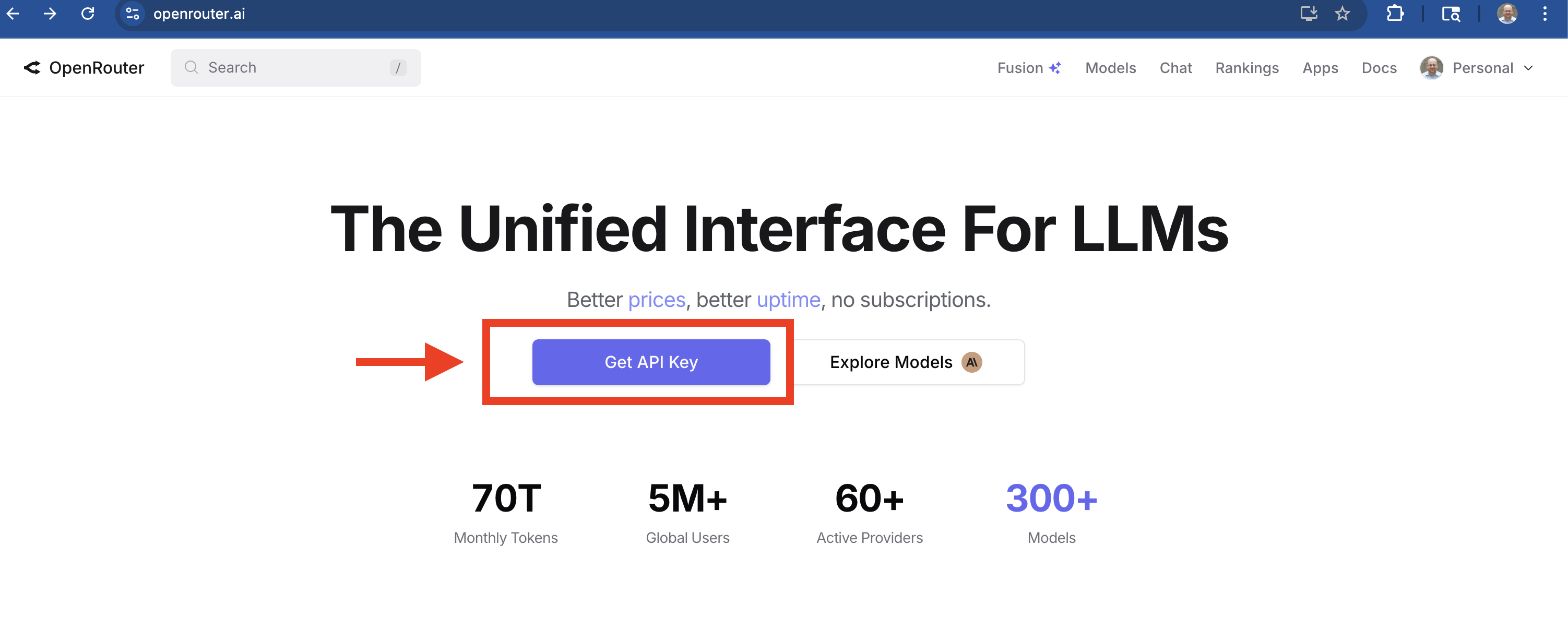
Once you’re signed in, add some credits to your account. OpenRouter works like a prepaid phone, you add credits and each conversation uses a small amount. A few dollars will go a long way.
Then go to your API keys page and create a new key.
Copy the key, you’ll need it in the next step. Also make sure you keep this key private, as whoever has access to it will be able to spend your API credits.
Step 3: Connect OpenRouter to Your BrainDrive
Open your BrainDrive and go to Settings → Model Providers.
You’ll see three options: BrainDrive, OpenRouter, and Ollama. Click on OpenRouter.
Paste your API key into the field and click Save API Key.
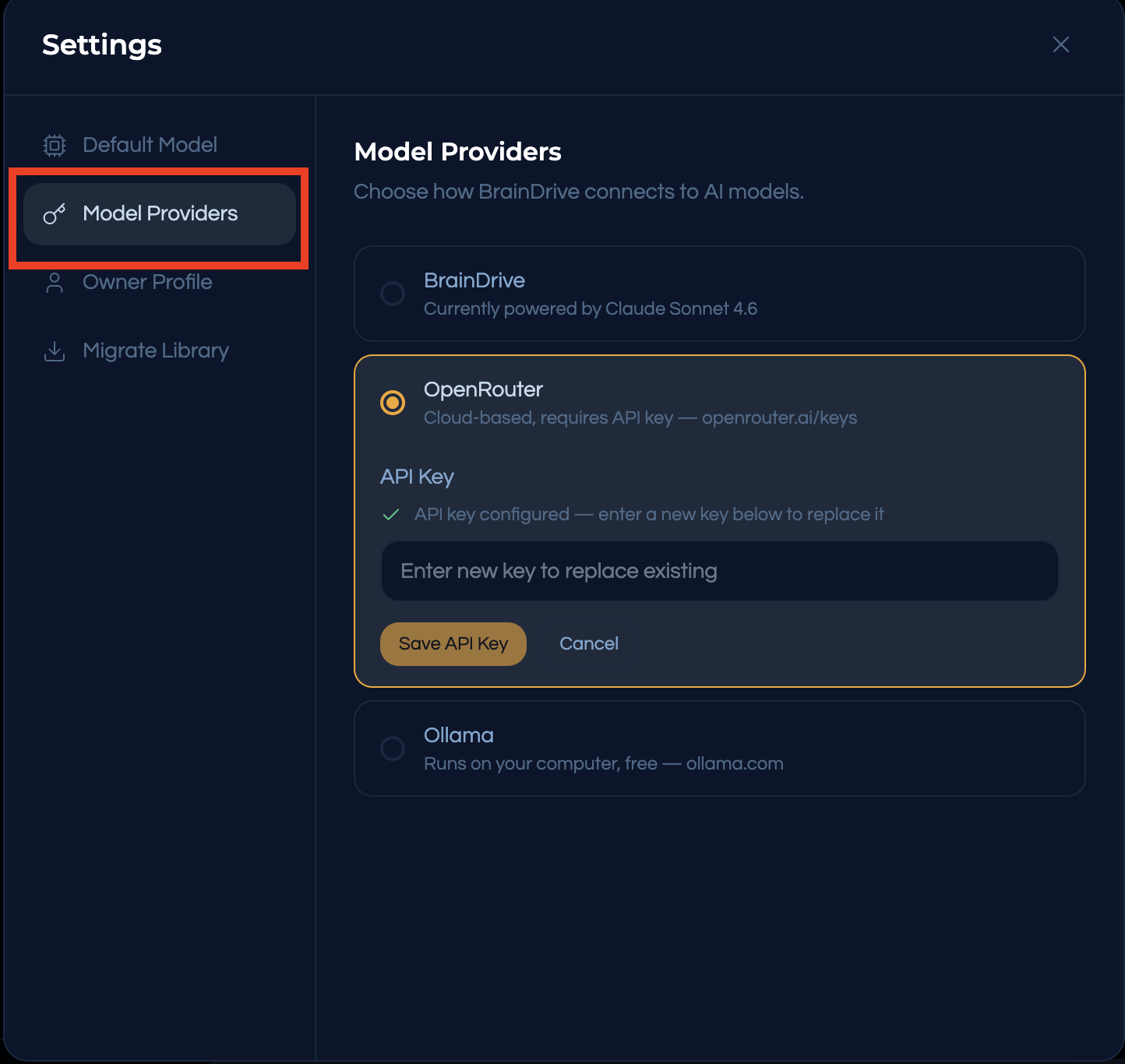
Step 4: Select Your Model
Now go to Settings → Default Model. You’ll see a catalog of all the models available through OpenRouter. Use the search bar to find a specific model, or browse the list.
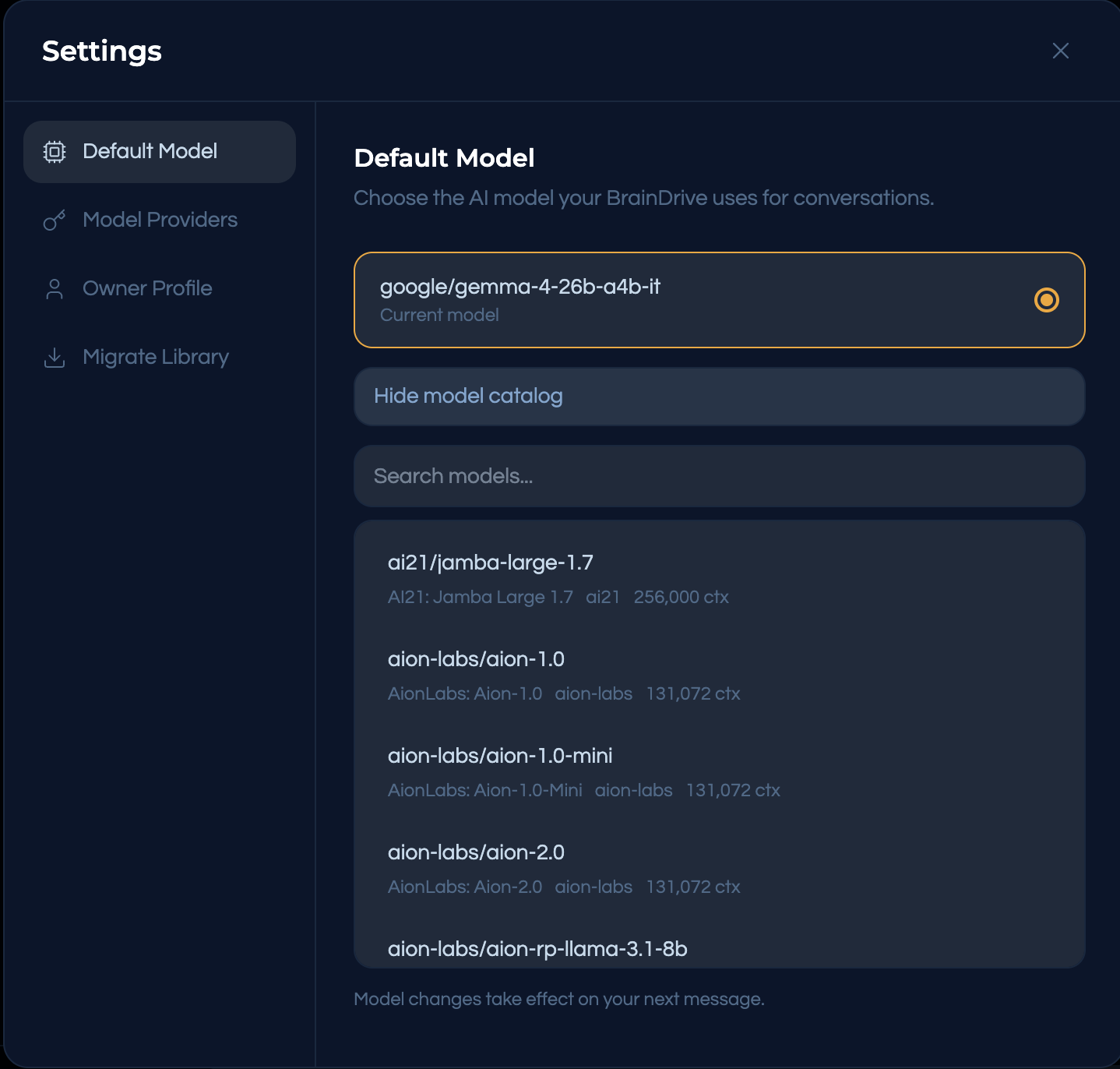
Select the model you want to use. Model changes take effect on your next message.
Which model should I choose? If you’re not sure, just pick one and try it. You can switch anytime. Different models have different strengths, try a few to see which one you like best.
Good to Know
You can switch models anytime. Go to Settings → Default Model and pick a different one. Your Memory, your projects, your specs and plans all stay the same. You’re only changing which AI model powers the conversation.
Some models are free. Look for models marked as free in the catalog. They’re a great way to experiment without spending anything.
Watch your credits. OpenRouter shows your credit balance on their dashboard. Most conversations cost fractions of a cent with smaller models, and a few cents with larger ones.
If you haven’t already, head back to the course to learn how to get the most out of your BrainDrive.