Hi All,
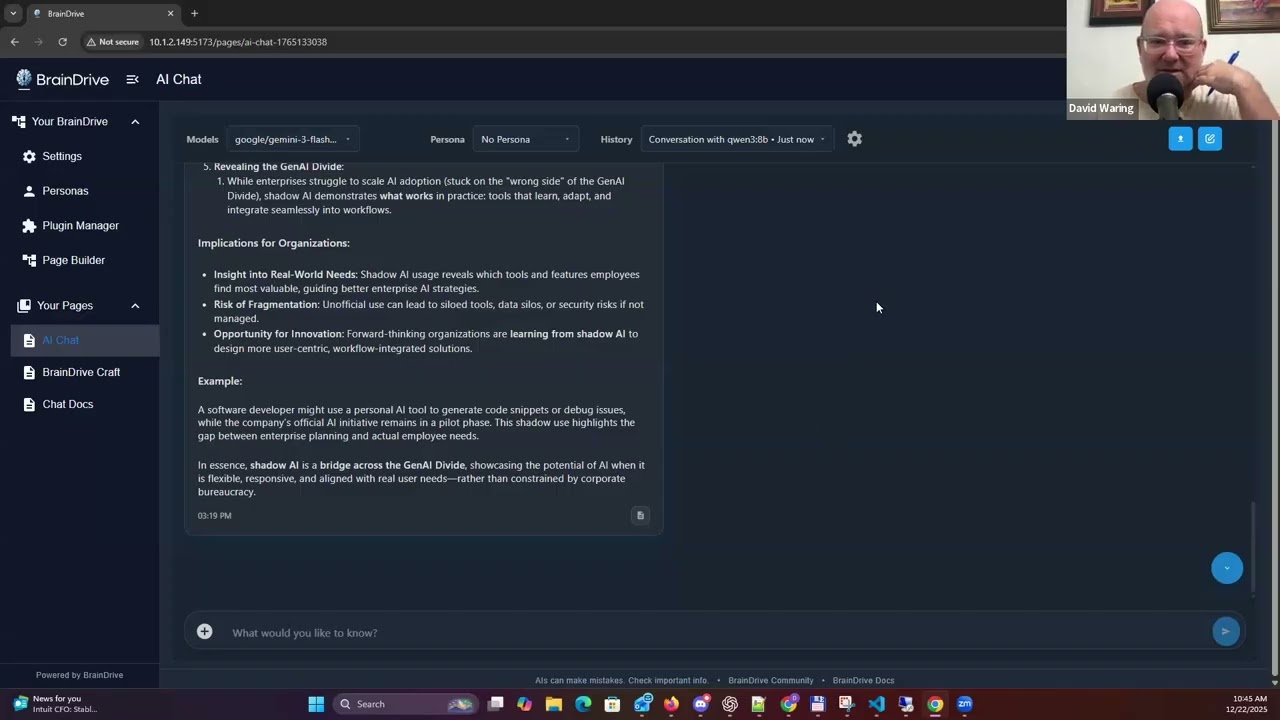
Dave J and I had a discussion on creating a framework for how we should think about UX at BrainDrive.
Below is a checklist I came up with based on that conversation, followed by a full overview of the framework. I have also included the recording of our conversation for anyone who is interested.
This is designed to be a starting and not an endpoint so your comments, ideas for improvement, concerns, etc are welcome. Just hit the reply button.
Thanks,
Dave W.
UX Decision Checklist
When debating a UX change, work through these questions:
- Is there a standard pattern in ChatGPT, Claude, or Gemini?
- If yes, default to it unless there’s a BrainDrive-specific reason not to.
- Does it reduce Owner thinking?
- If no, it’s suspect.
- Does it remove a step or reduce uncertainty?
- If yes, it’s probably good.
- Is critical state visible at a glance?
- If not, what can we surface?
- Does it respect tiering?
- If it adds complexity, can we push it down a layer?
- Does it earn its screen real estate?
- If not, remove, merge, or hide behind progressive disclosure.
- Is it safe to explore?
- Do hover states, tooltips, and clear affordances prevent hesitation?
- Are we diverging from defaults?
- If yes, can we articulate the BrainDrive-specific reason clearly?
- Does it work without hover?
- Touch users need equivalent access to tooltips and hidden information.
- Are error states calm, actionable, and non-technical?
- Can the Owner recover without technical knowledge?
Full Framework Overview:
BrainDrive’s UX decisions need a shared foundation so we can make consistent choices, resolve disagreements faster, and scale decision-making as the community grows.
This framework is not rigid. It’s a baseline that guides default decisions, makes trade-offs explicit, and can be updated as BrainDrive evolves.
The North Star: Don’t Make Me Think
BrainDrive Owners should never have to pause and figure out what to do. The screen should make it obvious.
Self-hosted AI already asks more of users than cloud services—installation, configuration, model management. The interface must compensate by being exceptionally clear. Every moment of confusion in the UI compounds the friction that self-hosting inherently creates.
Core Principles
1) Default to the Default
Start with proven patterns from ChatGPT, Claude, and Gemini. Most BrainDrive Owners arrive already trained on those experiences. We should not require them to learn new interaction patterns unless there’s a good reason.
Rule of thumb: If ChatGPT, Gemini, and Claude all do something the same way, treat that as the default standard.
When we diverge: We only diverge when local/self-hosted constraints require a different approach, when conforming would conflict with BrainDrive’s pillars (ownership, privacy, freedom, empowerment), or when BrainDrive’s unique capabilities demand it (e.g., BrainDrive Pages).
2) One Less Thing the Owner Has to Do
Whenever we can safely remove a step for the Owner, we should: defaults that work out of the box, auto-selection when it’s clearly correct, preconfigured paths that reduce setup friction.
Important nuance: Defaults should be strong but never a lock-in. Owners must always have the freedom to override and change defaults to their preferred settings.
3) Tier the Experience (Simple First, Power Underneath)
BrainDrive serves two audiences at once: non-technical users who need confidence and clarity, and technical users who want depth and control. These audiences require a tiered UX:
- Tier 1: Core actions and critical state, visible immediately
- Tier 2: One-click access to common controls
- Tier 3+: Advanced settings, tuning, customization
Non-technical users often won’t explore if they fear breaking something. Technical users will. Design the default surface for the non-technical user; put power behind layers.
4) Make Critical State Visible Without Clicks
BrainDrive Owners should be able to answer these questions at a glance: What model am I using? What persona is active? What mode is enabled (RAG, doc chat, collection)? What context is being applied?
Rule of thumb: If the Owner needs to click around to confirm “what system am I currently using?”, we’re adding unnecessary cognitive load.
5) The Interface Is the Documentation
Most people don’t read docs—especially non-technical users. The interface must provide clear affordances (“this is clickable”), hover states and tooltips that reduce uncertainty, and small hints explaining what happens when you click.
Goal: Make the UI feel safe to explore.
6) Clickable Must Look Clickable
Owners should instantly recognize interactive elements. Favor familiar iconography (gear = settings), clear button states, hover states and tooltips. Avoid “mystery meat navigation.”
Rule of thumb: If an element is interactive but doesn’t look interactive, it’s a UX bug.
Accessibility note: “Clickable looks clickable” extends to screen readers, keyboard navigation, and sufficient color contrast. Interactive elements need semantic markup and focus states, not just visual styling.
7) Best Value for Real Estate
Every pixel should earn its place. Constantly ask: Does this element reduce thinking or work? Does it remove uncertainty? Does it improve clarity of state? Is it redundant with another control? Could it become progressive disclosure instead?
Outcome: Maximize usefulness without clutter.
8) Responsive UX: Use Space When It Exists
On large screens, don’t waste real estate. Example: on wide desktop, show conversation history persistently in a sidebar; on smaller layouts, collapse into a dropdown or menu. The UI should adapt to the Owner’s available space instead of forcing one layout.
Touch considerations: Hover states don’t exist on touch devices. For mobile, provide tap-accessible alternatives: long-press for tooltips, inline hint text, or expandable info icons.
When Things Go Wrong
9) Error States Must Be Calm, Actionable, and Non-Technical
BrainDrive is a local, modular system. Failures will happen—installs can fail, services can be slow to start, dependencies can break. When that happens, the UX must keep Owners confident and moving forward.
Every error state must answer clearly:
- What happened — in plain English, no stack traces as the primary message
- What it means — impact: “you can’t use RAG yet,” “chat still works”
- What to do next — one to three concrete actions, ordered by likelihood of success
- Where to find details — logs and diagnostics available, but not required for the next step
Rule of thumb: The Owner should never feel like they need to be technical to recover. The UI should guide them back to a working state.
Conversation Recording: